
Foundation Study Settings - Lead Status
Overview
Foundation includes a set of default lead statuses to help your team track where each lead stands in the recruitment process. If your study has unique workflow stages that the defaults don't cover, you can create custom lead statuses to match how your team actually works.
How it works
Custom lead statuses live in your Study Settings. Once created, they appear alongside the default statuses in any status dropdown across your study. Custom statuses are study-specific, so changes you make here will not affect other studies in your account.
View custom lead status settings
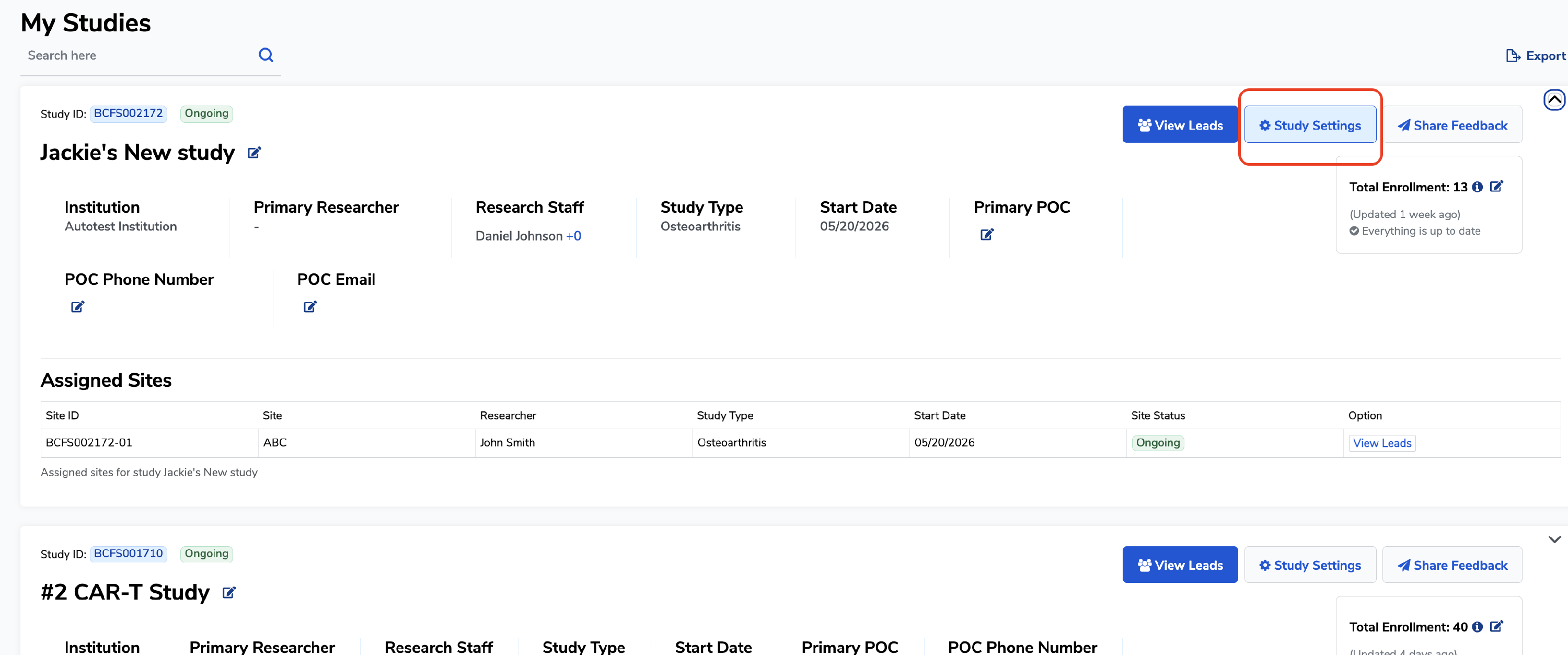
- Navigate to your study in Foundation. From the My Studies page, select the study you want to configure.
- Open Study Settings. Click the Study Settings button within your study.
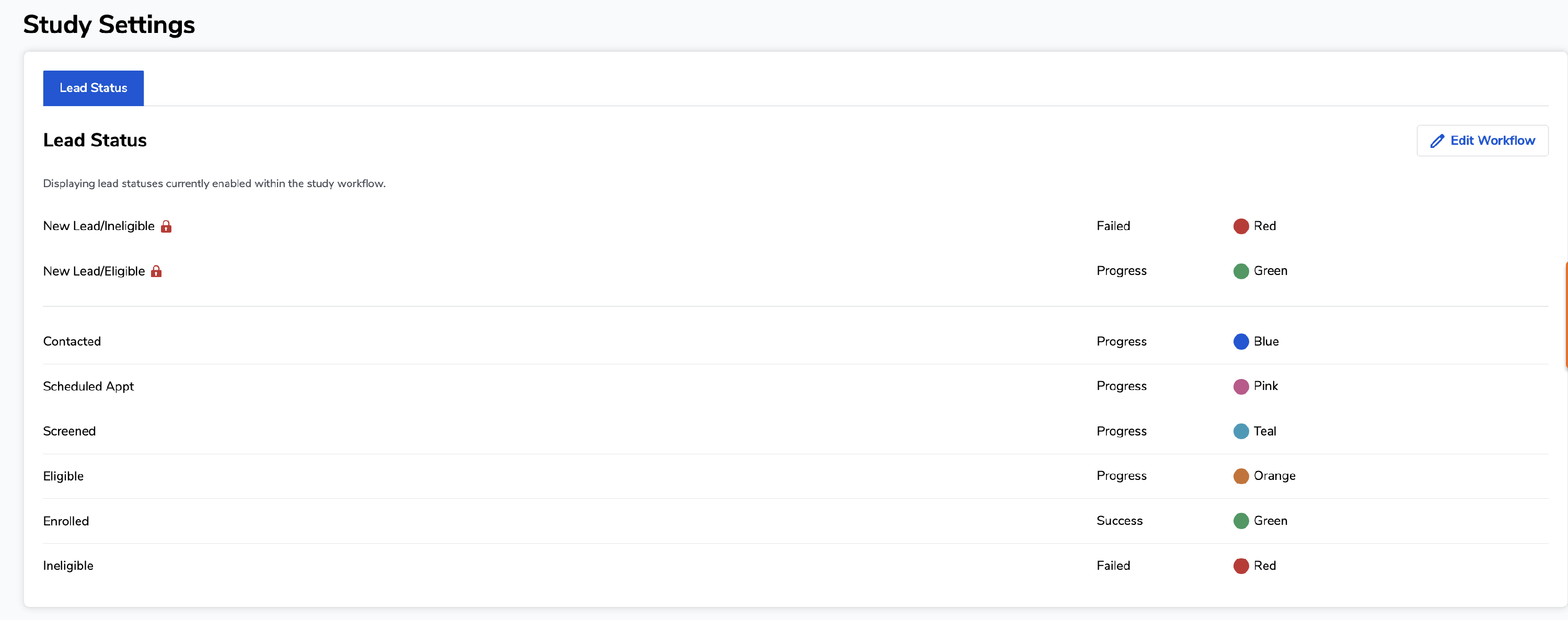
- Find the Lead Status tab. The tab displays all statuses currently active in your study workflow.
Adding a custom lead status
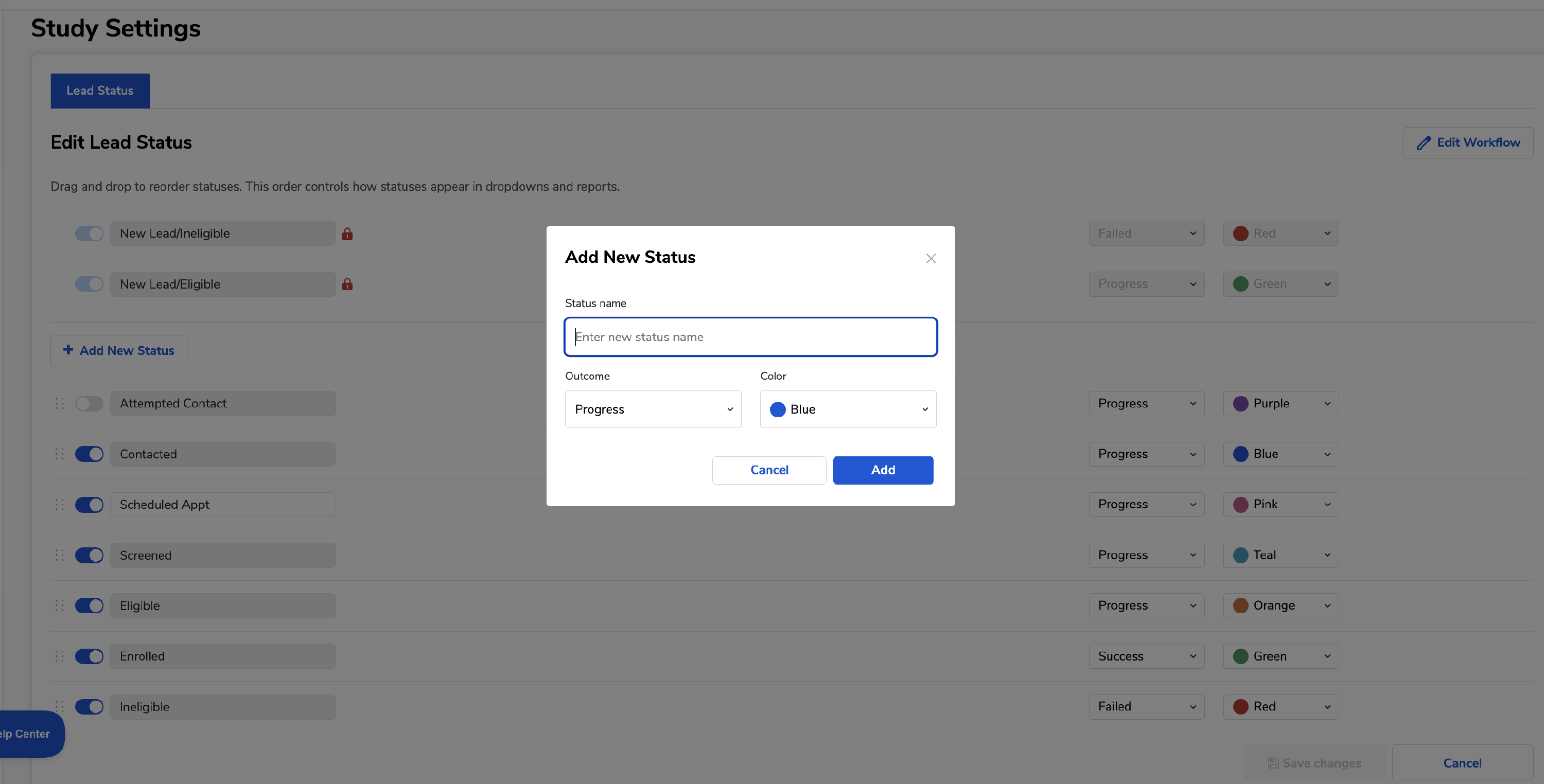
- Click Edit Workflow. This button is in the upper-right corner of the Lead Status tab. It opens the workflow editor where custom statuses can be managed.
- Add a new status. In the workflow editor, click Add New Status. Enter a name, select a Outcome (Progress, Success, or Failed), and choose a Color.
- Save your changes. Click Save. Your new status will now appear in the Lead Status list. Once added, you can drag and drop the status to position it in the correct place within your workflow. The order statuses appear here is the order your team will see them in dropdown menus, progress bars, and recruitment funnel throughout Foundation.
💡 Tip: Choose status names that are short and action-oriented — for example, "Scheduled Appt" "Awaiting Review," or "Pending Consent" This makes it easier for your whole team to use them consistently.
Editing an existing custom status
- Go to Study Settings following the same steps above.
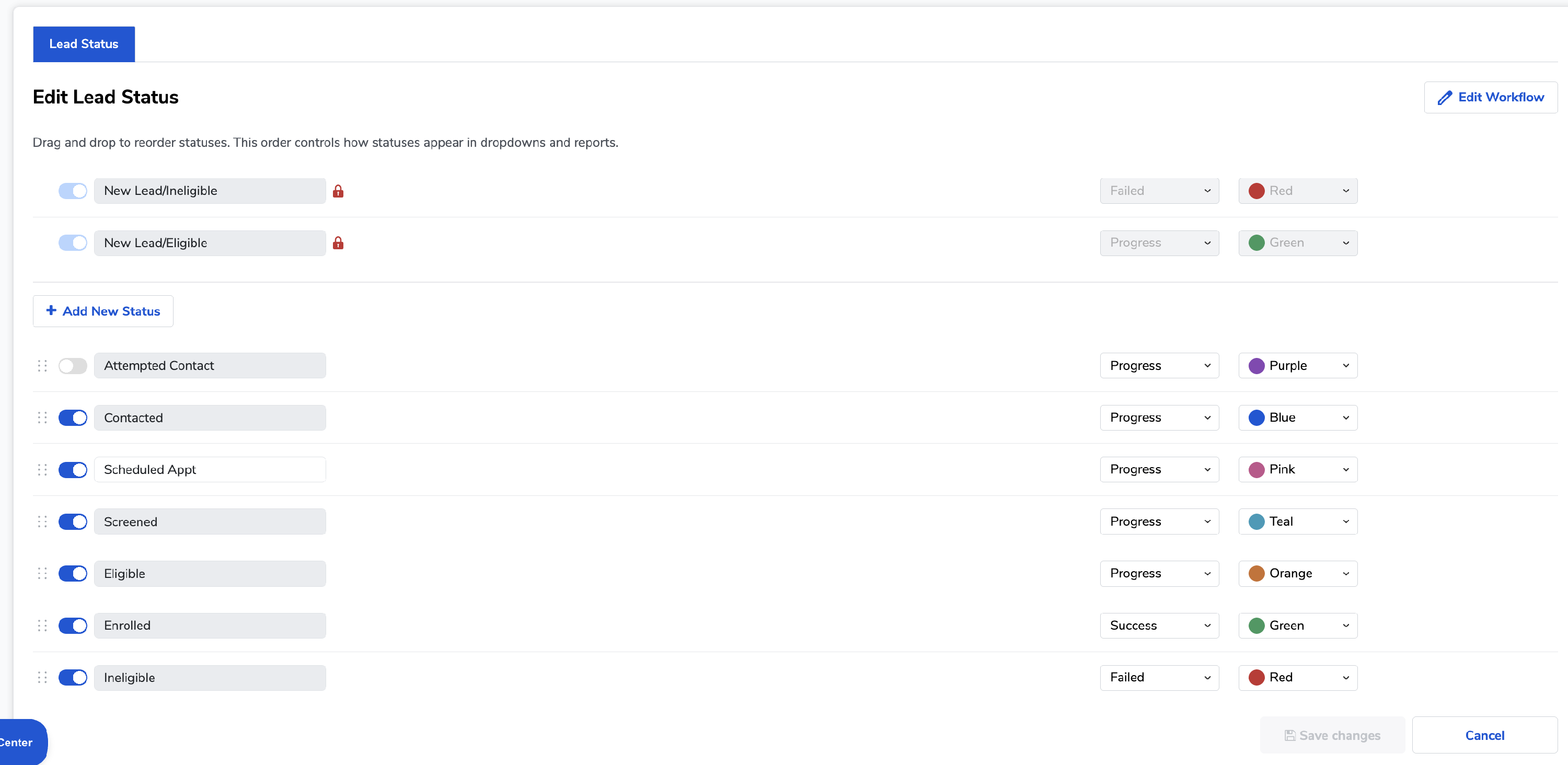
- Locate the status you want to rename under the Custom Lead Statuses section. Change name directly in the text box
- Toggle on/off status if you would like to no longer use that status in your workflow
⚠️ Note: Renaming a status updates it everywhere it appears — including on leads that were already assigned that status. The leads themselves are not affected, only the label changes.
Common questions
Q: Will toggling off a lead status remove it from leads already assigned to it? A: No — if you toggle off a status, it will no longer be available for use for future, but it will still be visible if leads still have that status assigned. We recommend reassigning those leads before toggling off the status to avoid gaps in your tracking.
Q: Are custom statuses shared across all studies in my account? A: No. Custom lead statuses are configured per study, so they only appear within the study where they were created.
Q: Can I use custom statuses when doing a bulk status update? A: Yes. Once a custom status is created, it's available in all status dropdowns in that study, including the bulk edit tool.