
Foundation Study Settings - Automation Builder
Overview
The Automation Builder lets you create rules that automatically perform an action to a lead when specific conditions are met. Instead of manually reaching out every time a lead's status changes or when new leads are submitted, you can set up automations to do it for you — saving your team time and ensuring leads hear from you promptly.
Automations are managed from the Automation Builder tab in your Study Settings.
Understanding the Automation Builder
The Automation Builder tab displays all automations created for your study. Each automation appears as a row with:
- A toggle to enable or disable the automation — blue means active, grey means inactive
- The automation name
- Edit and delete icons to manage each automation
⚠️ Note: Automations with a warning icon (⚠️) may have a configuration issue. Click the edit icon to review and resolve it before enabling.
Adding a new automation
-
Navigate to your study in Foundation. From the My Studies page, select the study you want to configure.
Open Study Settings and click the Automation Builder tab.
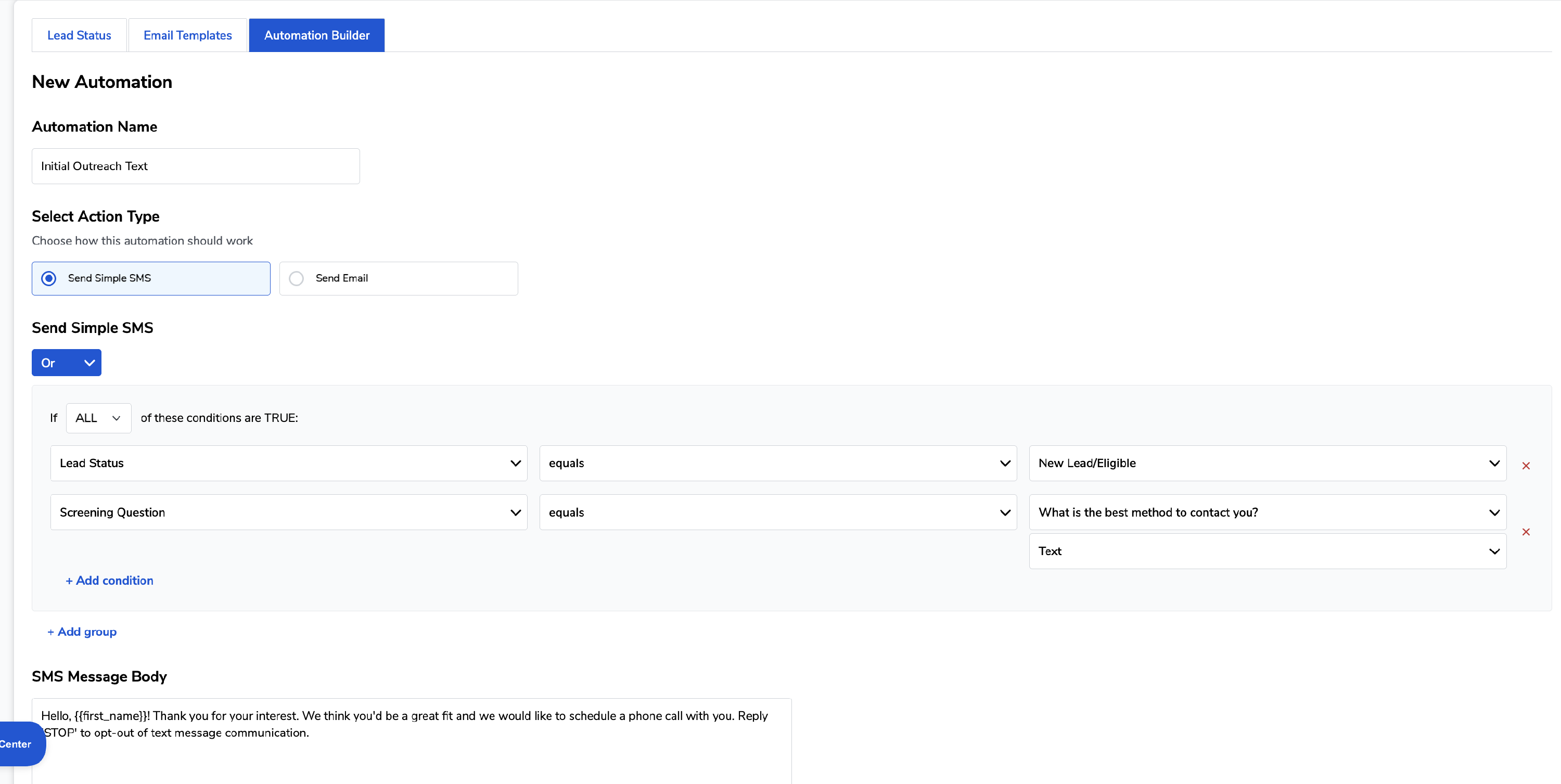
Click + Add an Automation. This opens the New Automation editor.
Enter an automation name. Choose a unique, descriptive name that makes it easy to identify what the automation does — for example, "First Contact SMS" or "Post Screening Email."
Select an action type. Choose how this automation should communicate with the lead:
- Send Simple SMS — sends a text message to the lead
-
Send Email — sends an email to the lead using a saved email template
Set your conditions. Conditions define when the automation should trigger. Use the condition builder to specify your rules:
- Use the If ALL / ANY dropdown to control whether all conditions must be true or just one
- Each condition row has three parts: a field (e.g., Lead Status, Screening Question), an operator (e.g., equals), and a value (e.g., New Lead/Ineligible, Text)
-
Click + Add condition to add multiple rules to the same automation
💡 Example: You could set an automation to send an SMS when Lead Status equals "New Lead/Eligible" AND the screening question "What is the best method to contact you?" equals "Text."
- Save the automation. Click Save. The automation will appear in your list in a disabled state. Toggle it on when you are ready to activate it.
Enabling and disabling automations
Each automation has a toggle on the left side of its row. Click the toggle to turn an automation on or off at any time without deleting it. This is useful for pausing automations temporarily — for example, during a holiday period or while updating your workflow.
- Blue toggle — automation is active and will fire when conditions are met
- Grey toggle — automation is inactive and will not fire
Editing an existing automation
- Open Study Settings and click the Automation Builder tab.
- Click the edit icon (pencil) next to the automation you want to update.
- Make your changes to the name, action type, or conditions.
- Click Save.
Deleting an automation
- Open Study Settings and click the Automation Builder tab.
- Click the delete icon (trash) next to the automation you want to remove.
- Confirm the deletion when prompted.
Deleted automations cannot be recovered. If you think you may need it again, consider disabling it using the toggle instead.
Common questions
Q: Can I have more than one automation active at the same time? A: Yes. Multiple automations can run simultaneously. Each one fires independently based on its own conditions.
Q: What does the warning icon next to an automation mean? A: It indicates a configuration issue — for example, a missing email template or an incomplete condition.
Q: Will an automation fire if I manually change a lead's status? A: Yes. If a manual status change meets the conditions of an active automation, it will trigger.
Q: Can I use both SMS and email automations in the same study? A: Yes. You can create as many automations as your workflow requires, mixing SMS and email action types as needed.
Q: What happens if a lead's preferred contact method doesn't match the automation type? A: The automation will still fire based on the conditions you set. We recommend using screening question conditions — such as filtering by preferred contact method — to make sure leads receive messages in their preferred format.
Q: What happens if a lead has opted out of text message communication?
A: If a lead has opted out of SMS, they will not receive text messages even if an active SMS automation's conditions are met. Foundation automatically respects opt-out preferences to stay compliant with messaging regulations. For leads who have opted out of text, consider setting up a corresponding email automation to ensure they still receive timely outreach.