
Lead List Page Quick Filters
Overview
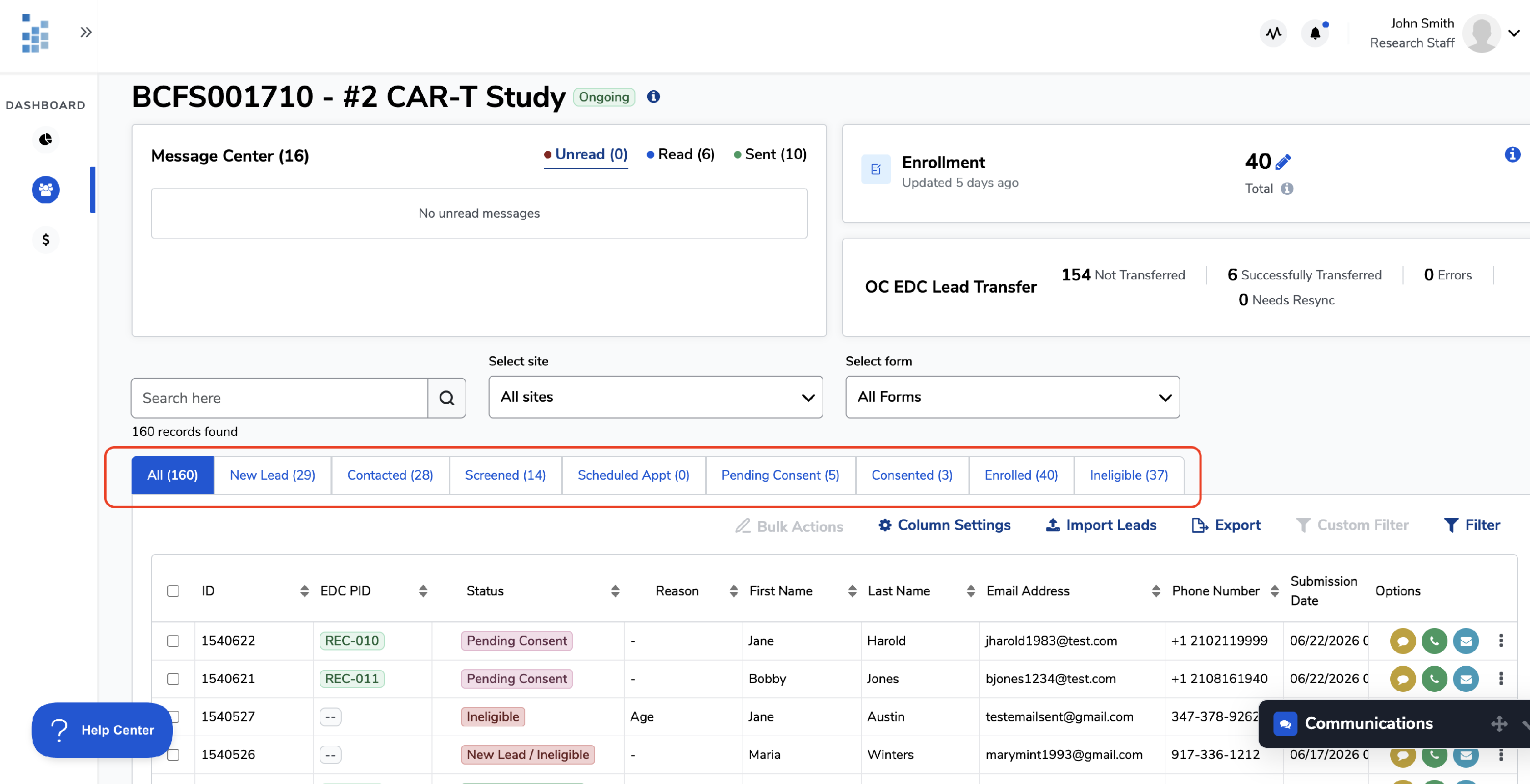
When your study is active, leads can accumulate quickly. The lead list page in Foundation gives you a set of quick filter tabs that let you instantly narrow your view by lead status — so your team can focus on the right leads at the right time, without scrolling through hundreds of records.
Understanding the quick filter tabs
At the top of your lead list you'll see a row of tabs — one for each status in your study workflow. Each tab shows the status name and a live count of leads currently in that stage. Click any tab to instantly filter the list to just those leads. The All tab is selected by default.
💡 Tip: Check your earliest-stage and time-sensitive tabs first each day. New leads are most responsive when contacted quickly, and leads awaiting consent often just need a gentle follow-up to move forward.
How to use quick filters
- Locate the quick filter tabs above the lead list, below the search bar and site/form selectors.
- Click the tab for the status you want to focus on. The lead list will immediately update to show only leads in that status. The count in the tab tells you exactly how many leads need your attention there.
- Work through the list. From the filtered view you can open individual lead profiles, update statuses, send messages, call leads, or use Bulk Actions to update multiple leads at once.
- Click All to return to the full list when you're done.