
Lead Details Progress Bar
Overview
The lead progress bar gives you an at-a-glance view of where a participant is in your recruitment funnel at the top of every lead's details page. It shows which stages a lead has completed, where they currently are, how long they've been there, and — when applicable — whether they enrolled successfully or became ineligible and why.
How it works
Every lead moves through a defined set of stages. These statuses are configurable in your study settings, so the stages you see may vary depending on how your study is set up.
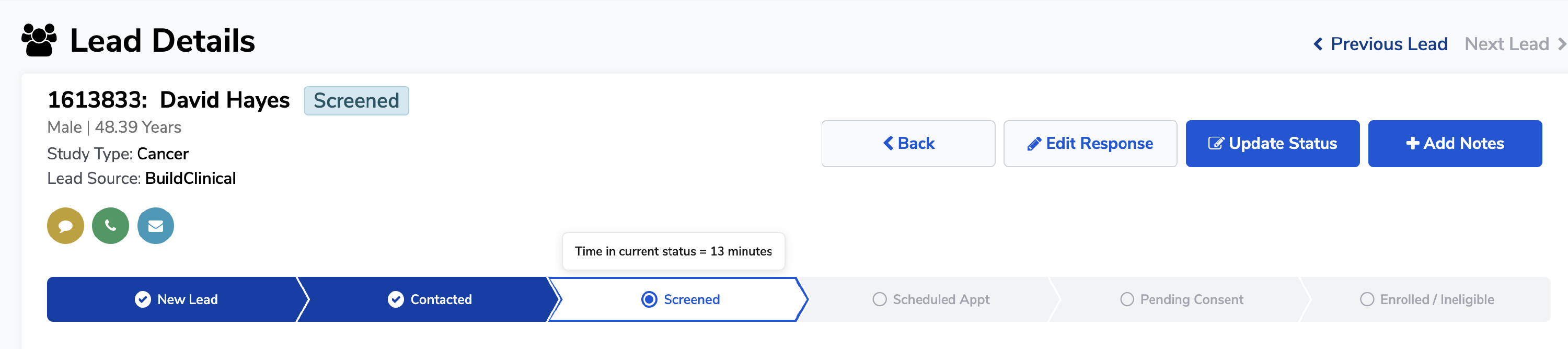
Completed stages appear filled in dark blue with a checkmark. The current stage is white and highlighted with a blue outline. Stages not yet reached are shown in grey.
Time in current status
When a lead is in an active stage, the progress bar displays a "Time in status" tooltip showing how long they've been at that step — for example, "Time in status = 7 hours." This helps your team prioritize follow-up and avoid leads going cold.
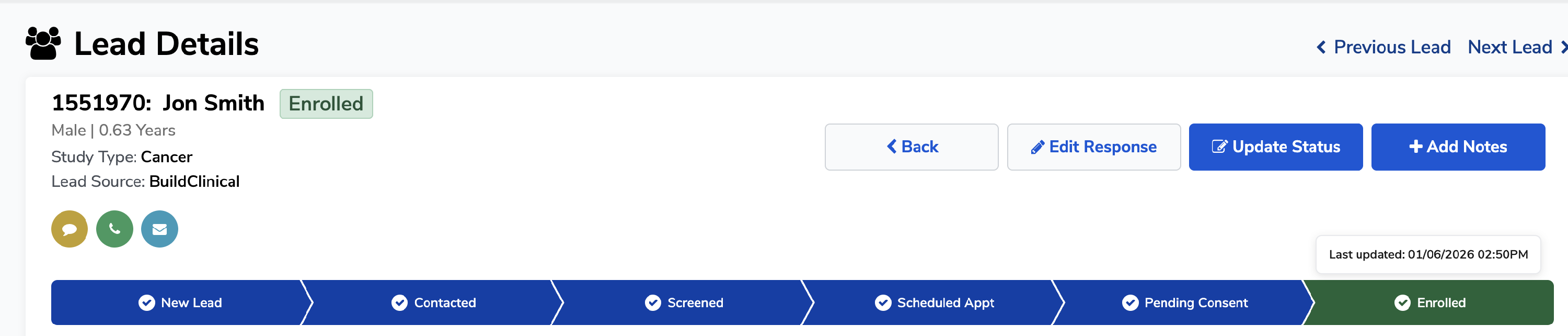
Enrolled success outcome
When a lead successfully completes all stages and is enrolled in the study, the final stage turns green with a checkmark and the Enrolled badge appears at the top of the lead's profile. All prior stages will also show as complete in blue.
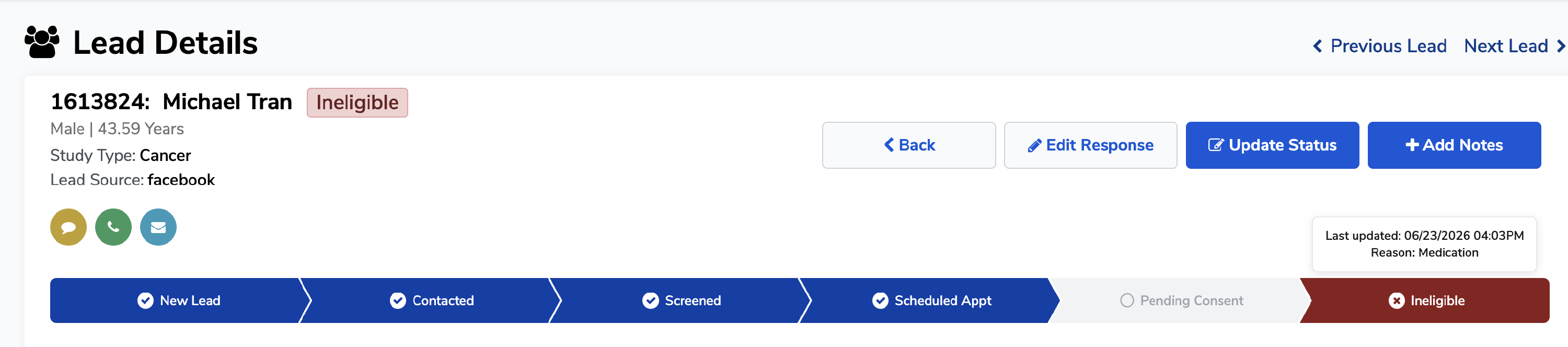
Ineligible failed outcome
If a lead does not qualify at any point in the process, their status is marked Ineligible. The progress bar shows:
- All stages the lead did complete, filled in blue
- The Ineligible step shown in red with an X icon
- Any stages between their drop-off point and Enrolled shown as incomplete in grey
This makes it easy to see exactly where in the funnel the lead became ineligible — for example, a lead who made it through Screened and Scheduled Appt but never reached Pending Consent dropped off at the appointment stage.
Ineligible reason
When a lead is marked ineligible, the reason is recorded and displayed in the Last updated block — for example, "Last updated: 06/23/2026 04:03PM — Reason: Medication." This gives your team full context for why the lead did not proceed, without needing to dig further into the record.
Common questions
Q: Can I see how long a lead spent in each stage, not just the current one? A: Yes, the progress bar shows time in the current stage and time in previous stages completed. For a full history of status changes and timestamps, refer to the lead's activity log within the lead detail view.
Q: What happens if a status is skipped?
A: If a lead is moved past a stage without being explicitly set to that status, it will appear as completed in the progress bar. This indicates the lead has progressed beyond that point in the funnel, even if no activity was logged for that specific stage.
Q: What does it mean if a stage is grey? A: A grey stage means the lead has not yet reached that step, or — in the case of an ineligible lead — that stage was skipped because the lead exited the funnel before getting there.
Q: Where does the ineligible reason come from? A: The reason is entered by your team when updating the lead's status to Ineligible via the Update Status button.