
How to Text a Lead
You can send a text message to a lead directly from the Communications widget, available on both the lead list page and the lead details page.
Open the Communications widget
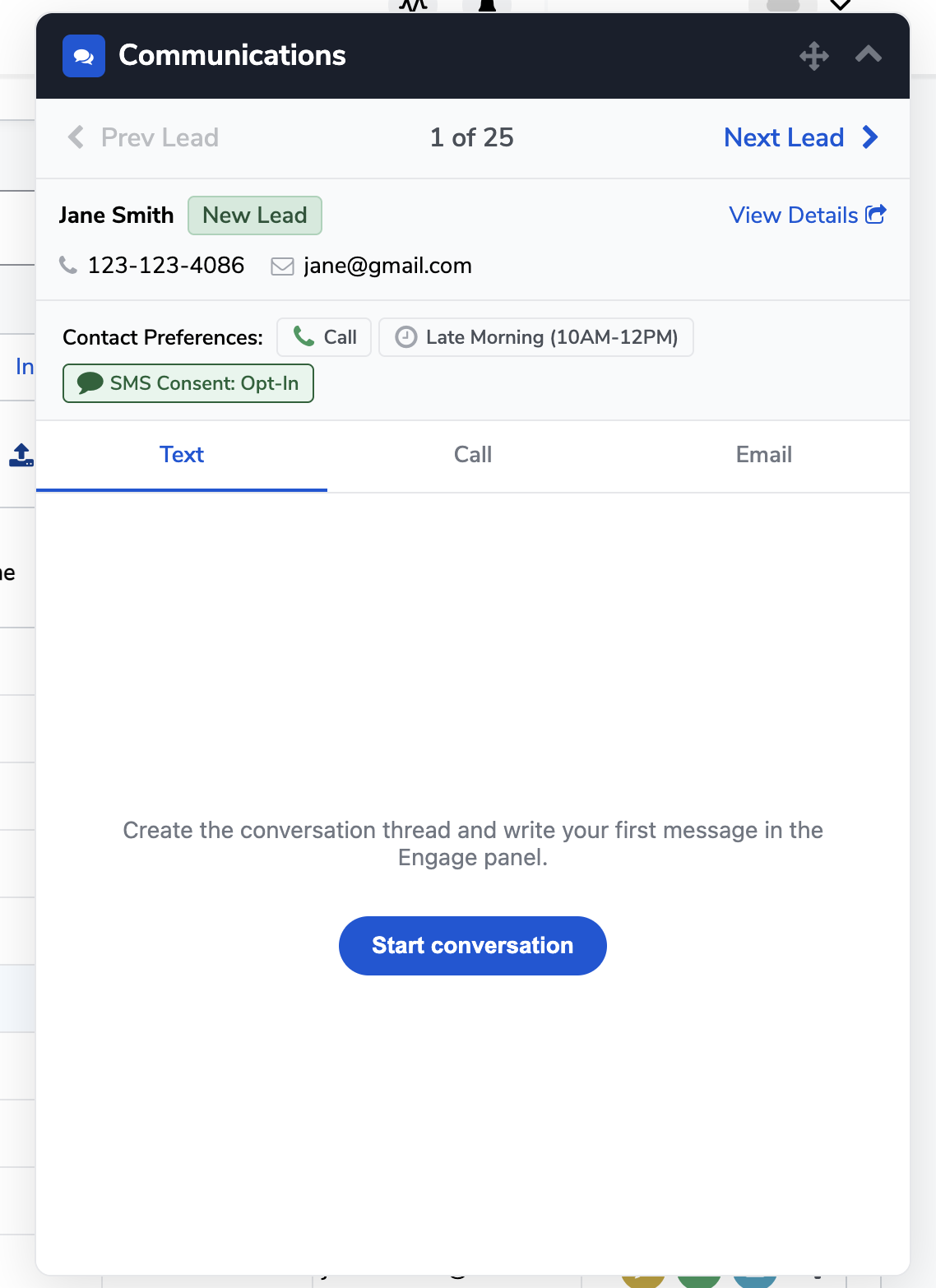
From the lead list, click the text message icon on the lead's row. From the lead details page, open the Communications widget from the panel. Once open, click the Text tab at the top of the widget.
Start a conversation
If you haven't texted this lead before — or if you don't have an automation set up to send an initial outreach on your behalf — you'll see a Start conversation button. Click it to open the message thread and enable the text input.
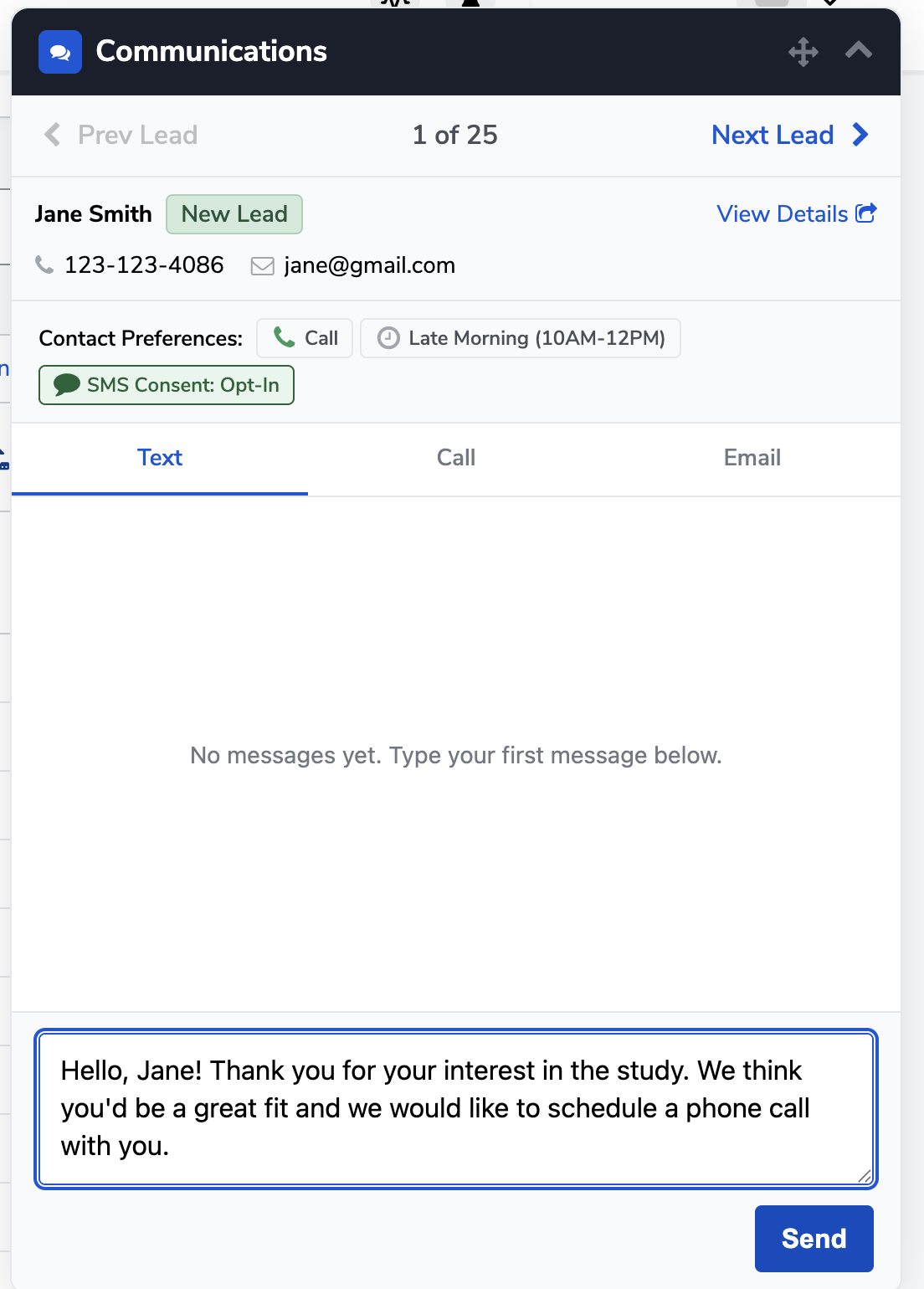
Once the thread is open, type your message in the text field at the bottom and click Send.
Any replies from the lead will appear in the same thread the next time you open the widget.
Tip: The widget shows the last contacted date and method at the top — a quick way to check whether this lead has already been reached out to before you text.