
How to Email a Lead
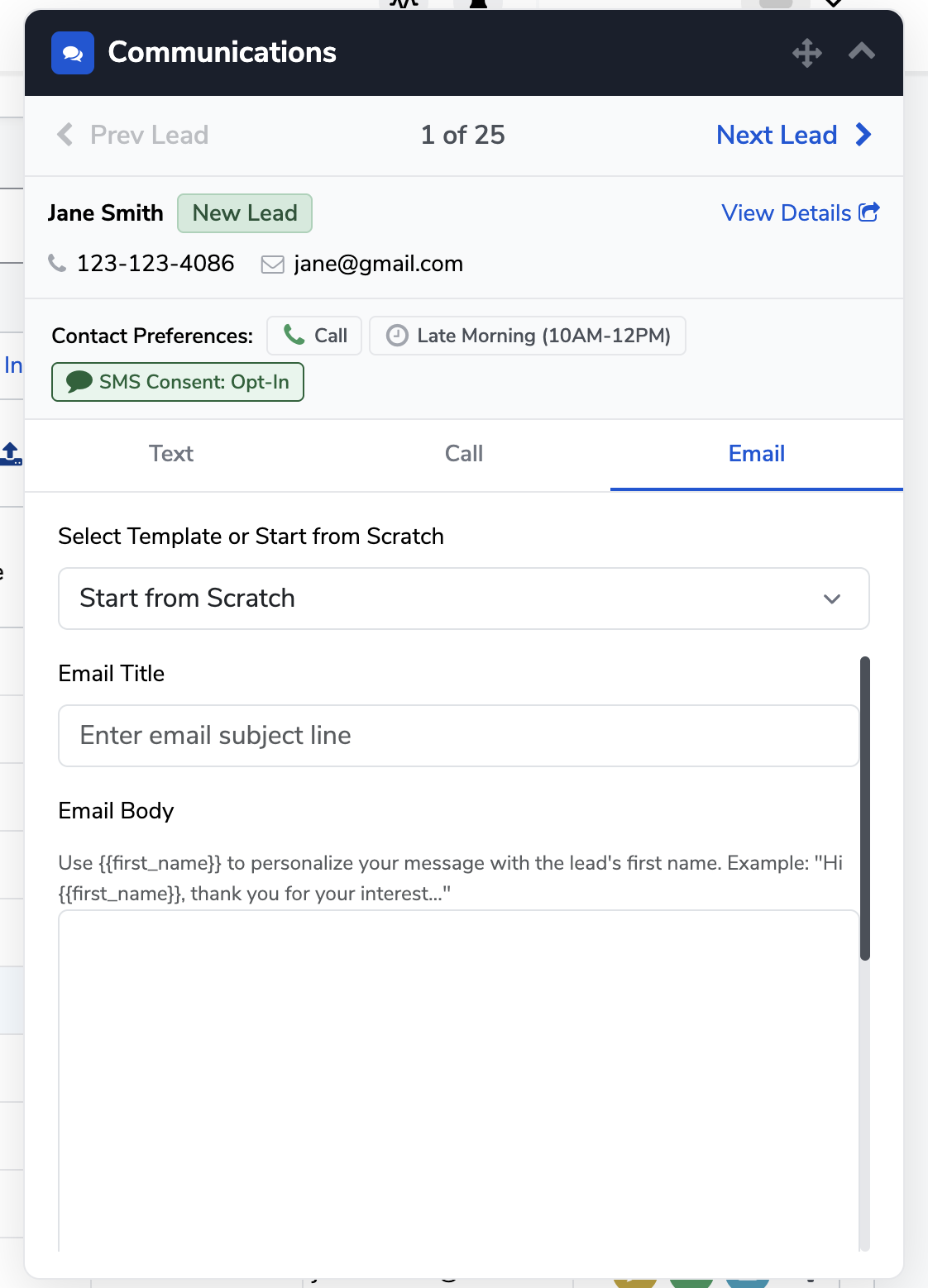
You can email a lead directly from Foundation using the Communications widget, available on both the lead list page and the lead details page.
Open the Communications widget
From the lead list, click the communications icon on the lead's row. From the lead details page, open the Communications widget from the panel. Either way, you'll land on the same experience.
Compose your email
- Click the Email tab at the top of the widget (alongside Text and Call).
- Choose a starting point. Use the dropdown to select a pre-configured template or choose Start from Scratch to write a custom message.
- Enter a subject line in the Email Title field.
- Write your message in the Email Body field. Use
{{first_name}}anywhere in the body to automatically personalize the message with the lead's first name — for example: "Hi {{first_name}}, thank you for your interest..." - Set your From name so the lead knows who the email is coming from.
- Enter a Send Replies To address so any replies from the lead are routed to the right inbox.
-
Send the email.
A note on sending address
All emails are sent from hello@research.buildclinical.com regardless of the From name you enter. The From name personalizes how you appear to the lead, but the underlying sending address will always be the same.
Tip: If you're contacting many leads, set up a template in advance so you can move quickly without rewriting the same message each time.