
How to Allow Permission to Microphone/Speaker for Calls
To make calls in Foundation, your browser needs permission to access your microphone and speaker. If you try to start a call and nothing happens — or you see a permission error — follow the steps below.
Recommended browser
BuildClinical calling is powered by Twilio and works best in Google Chrome. Chrome is the only browser with full support for all audio features, including microphone input and speaker output selection. Firefox, Safari, and Edge are supported but have known limitations with audio device handling.
For the best experience, use the latest version of Chrome on a desktop or laptop. Mobile browsers are not recommended — they can't maintain a stable call connection in the background and don't handle interruptions well.
Allow access when prompted
The first time you initiate a call, your browser will ask for microphone access. When the prompt appears, click Allow. If you clicked Never Allow/Block by mistake, you'll need to update the setting manually (see below).
Update permissions manually
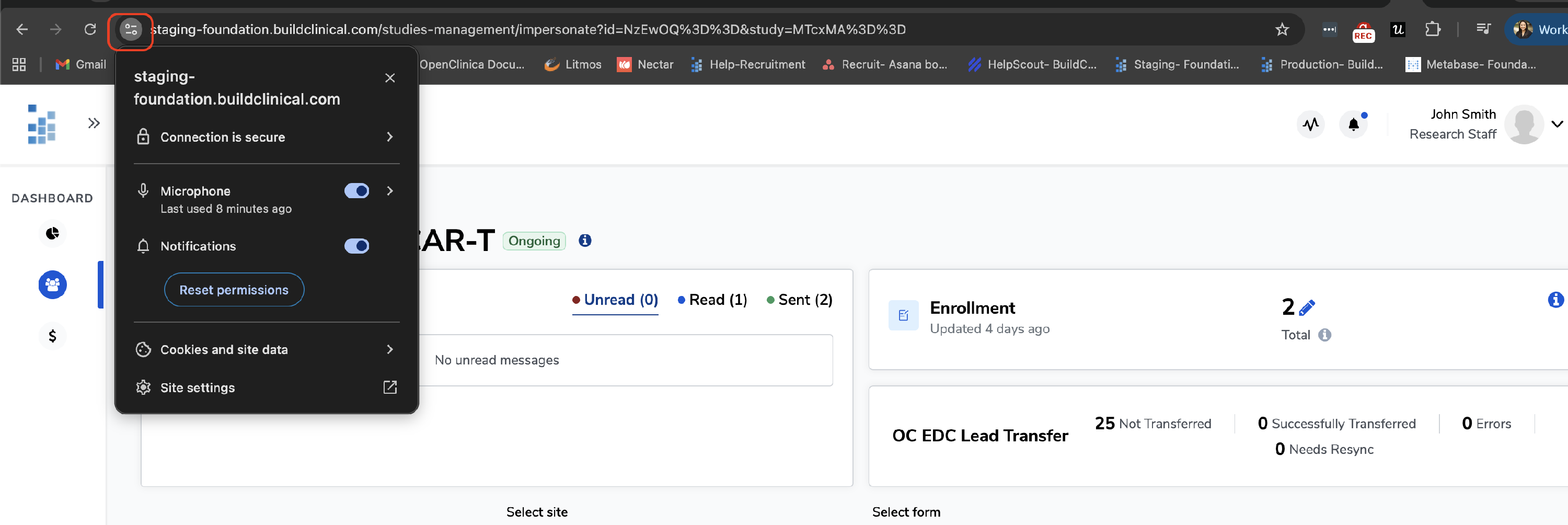
Chrome
- Click the settings icon in the address bar.
- Find Microphone in the dropdown and set it to Allow.
-
Refresh the page and try your call again.
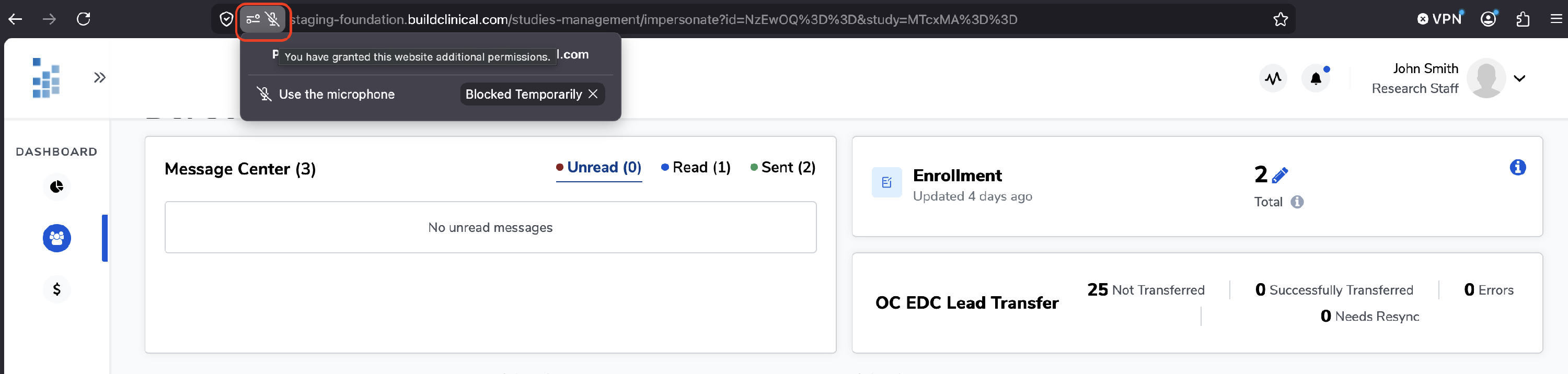
Firefox
- Click the settings icon in the address bar.
- Update microphone access.
- Refresh the page and try your call again.
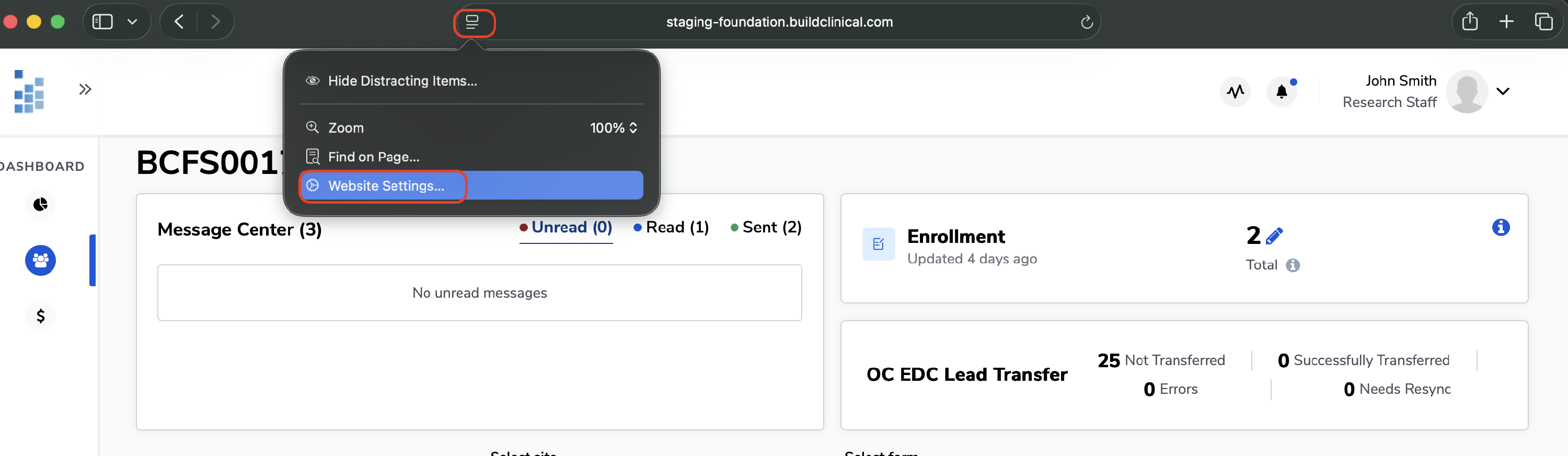
Safari
- Click the settings icon in the address bar.
- Go to Website Settings.
- Update microphone access.
-
Refresh the page and try your call again.
Still not working?
Check that your microphone isn't being blocked at the system level:
- Mac: Go to System Settings → Privacy & Security → Microphone and make sure your browser is listed and enabled.
- Windows: Go to Settings → Privacy → Microphone and confirm your browser has access.
Once permissions are set, refresh Foundation and try initiating the call again.