
Lead Contact Preferences
Overview
Contact preferences let you know how and when a lead wants to be reached. They are set by the lead when submitting their screening form and are displayed on the lead details page so your team can communicate respectfully and effectively.
Where to find contact preferences
Contact preferences appear in two places:
- Lead details page — in the Communications section near the top of the lead's profile
- Communications widget — visible any time you open the widget to send a text, make a call, or compose an email
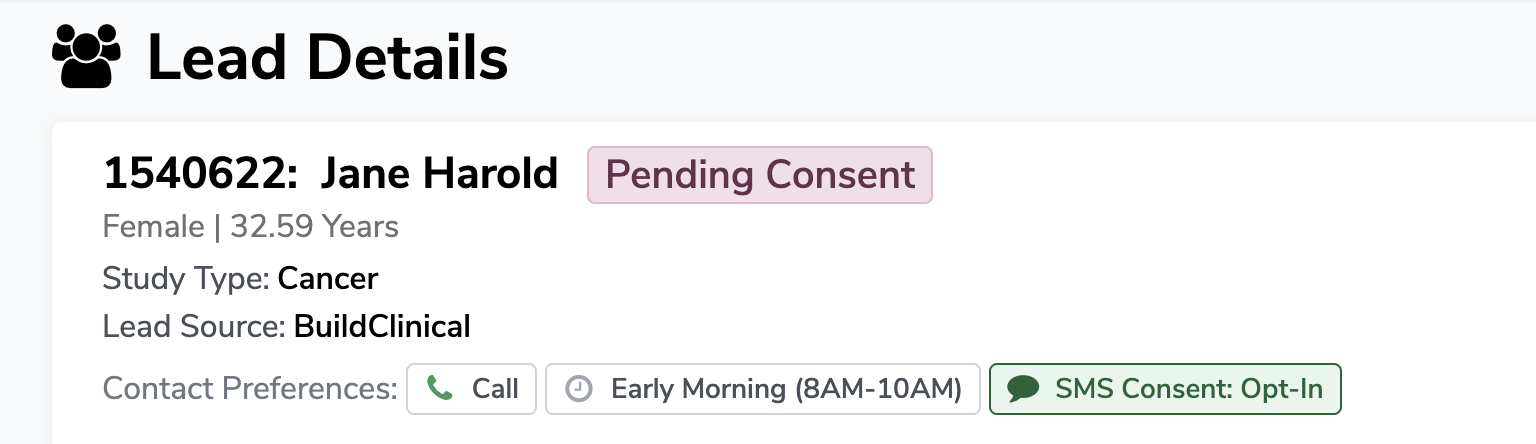
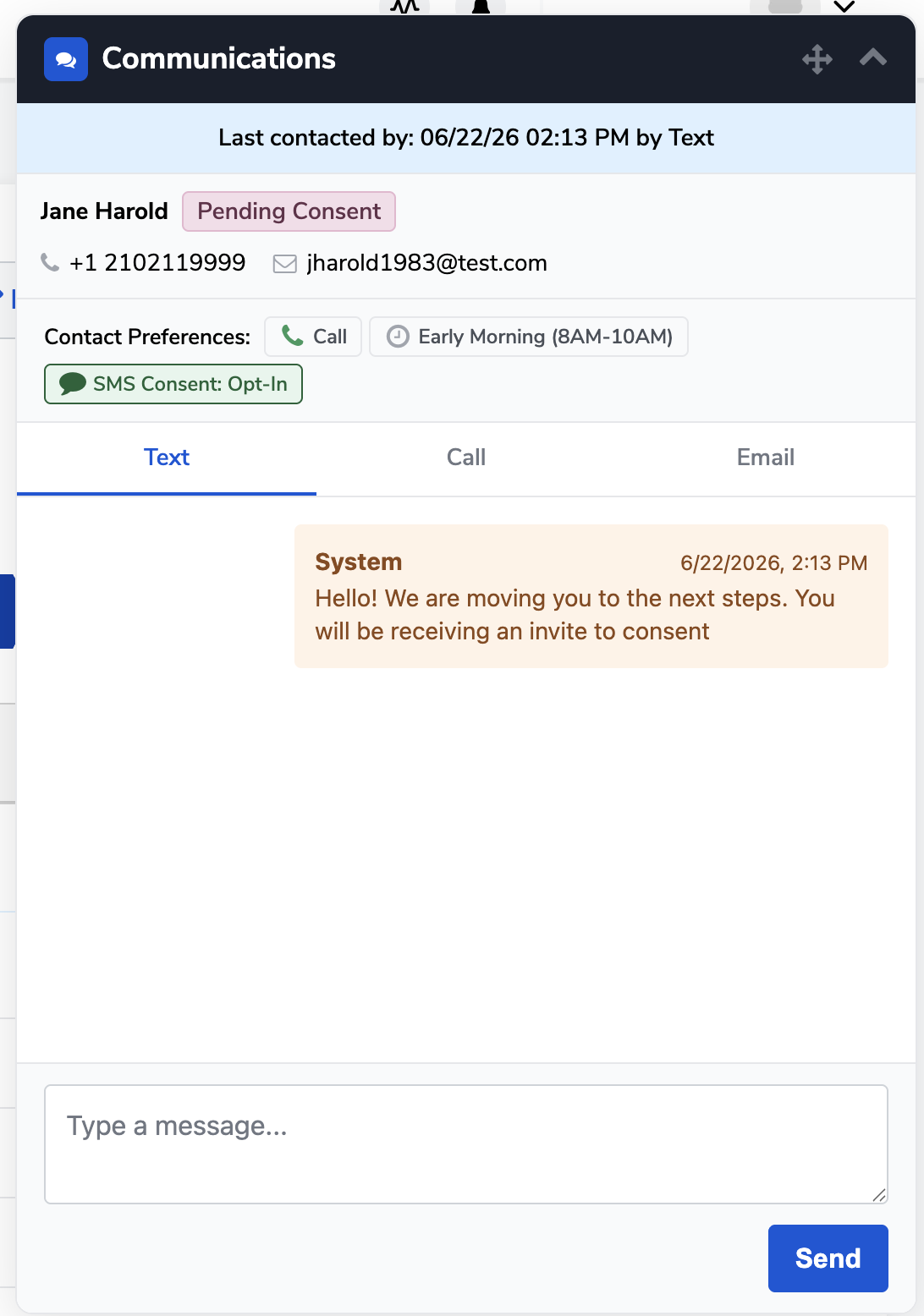
What each preference means
Preferred contact method
This tells you which channel the lead prefers you use to reach out:
- Call — the lead prefers to be contacted by phone
- Text — the lead prefers SMS messages
- Email — the lead prefers email communication
Always lead with the preferred method first. If you don't get a response, it's okay to try another channel — but respect the stated preference when possible.
Preferred contact time
This tells you the time window the lead prefers to be contacted.
Times reflect the lead's local timezone. Plan your outreach accordingly.
SMS consent
The SMS consent badge tells you whether the lead has opted in or out of text messaging:
- SMS Consent: Opt-In (shown in green): the lead has agreed to receive SMS messages. You may send texts through the Communications widget.
- SMS Consent: Pending (shown in yellow): the lead has not yet consented to text messages via the screening form submission. You may send one initial text through the Communications widget to request their consent. Their status updates based on how they respond:
- If they reply START, the badge changes to Opt-In.
- If they reply STOP, the badge changes to Opt-Out.
- If they don’t respond, the badge stays Pending.
- No badge / SMS Consent Opt-Out (shown in red): do not send text messages to this lead.
Foundation will respect leads who have opted out of text message communication. Manual and automated text messages will not be delivered. Leads may respond STOP at any time to opt-out via text message or START to begin receiving messages again.
Common questions
Q: Can I change a lead's contact preferences? Contact preferences are captured from the lead's own responses. If a lead requests a change, update the preference through edit screening form response.
Q: What if my screening form doesn't capture preferred time or method? If no time window or method is shown, please reach out to your CSA to get these fields added to your screening form.