
Message Center
Overview
The Message Center gives you a centralized view of all incoming and outgoing text communications with leads for a specific study. Instead of checking individual lead profiles one by one, the Message Center lets you monitor conversations across your entire lead list from one place.
Where to find the Message Center
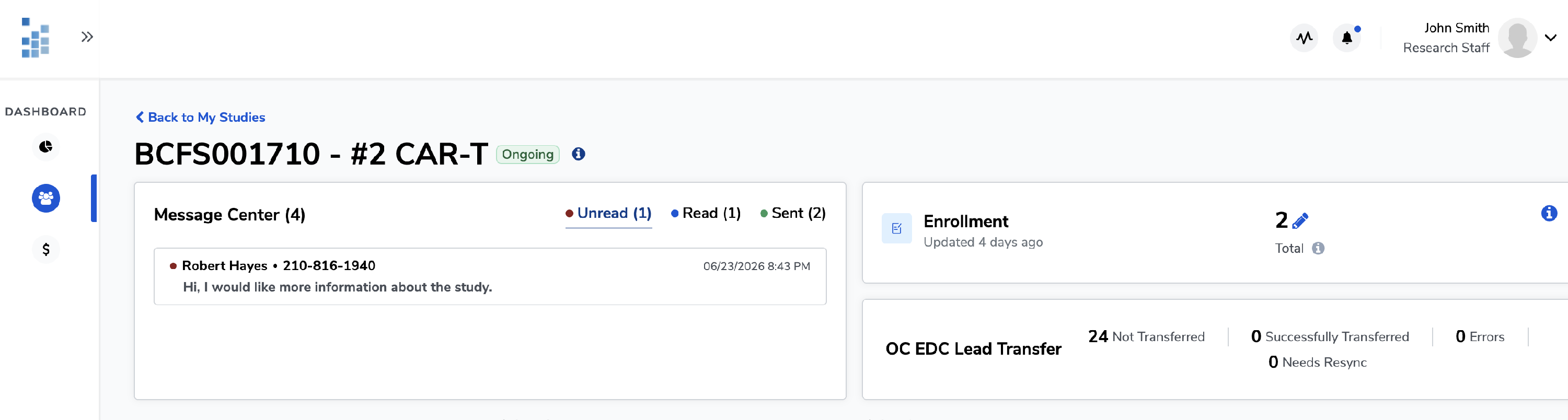
The Message Center is located on the lead list page. Navigate to your study from the My Studies, and you'll find the Message Center panel on the top of the lead list page.
What you'll see
Message count
The header shows the total number of messages in your Message Center (e.g., Message Center (16)). This reflects all conversations — unread, read and sent.
Message tabs
Messages are organized into three tabs:
- Unread — messages that have come in and have not yet been viewed. A red dot indicates new activity.
- Read — messages your team has already opened but not responded to. Shown with a blue dot.
- Sent — messages your team has sent out to leads.
Click any tab to filter the list to that category.
Message list
Each row in the list shows:
- Lead name and phone number — click to open that lead's full profile and Communications widget
- Message preview — the first line of the most recent message in the conversation
- Date and time — when the message was sent or received
- Message bubble icon — use this to mark a message as unread
How to use the Message Center
To read a message, click anywhere on the row. This opens the lead's message where you can view the full conversation thread in the Communications widget.
To reply, open the lead's message thread and type your response in the Communications widget text tab.
To mark a message as unread, click the message bubble icon on the right side of the message row. This moves it back to the Unread tab so it stays visible as a reminder to follow up.
To switch between tabs, click Unread, Read, or Sent at the top of the panel to filter your view.
Common questions
Q: What does the message bubble icon do? The message bubble icon marks a message as unread. Use it when you've opened a message but want to come back to it — it will reappear in the Unread tab as a reminder.
Q: Can multiple team members see the same Message Center? Yes. The Message Center is shared across all staff with access to that site that can view that lead. If a colleague has already read and responded to a message, it will appear in the Read or Sent tab accordingly.
Q: Are messages here the same as what appears in the lead's Communications widget? Yes. The Message Center and the Communications widget pull from the same conversation thread. The Message Center gives you an inbox view; the Communications widget shows the same messages scoped to a single lead.