Importing Leads
Overview
The Import Leads feature allows you to bulk-upload leads into your study from an external source, such as an internal registry or referral list.
Steps to Import Leads
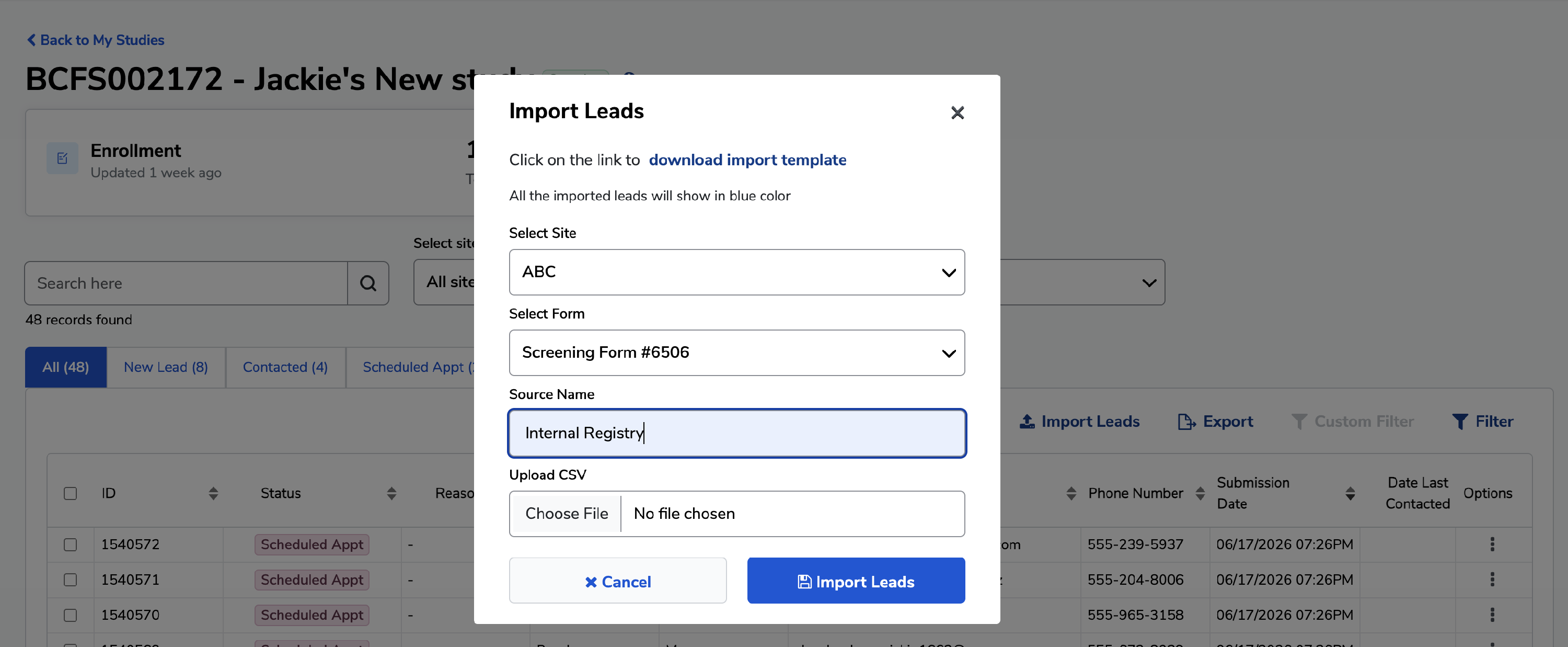
- Open the Import Leads Dialog. From your study's lead list, click the Import Leads button in the toolbar.
- Select a Site. Use the Select Site dropdown to choose the site you want to import leads into.
- Select a Form. Use the Select Form dropdown to choose the screening form you want the imported leads associated with.
-
Download the Import Template. Click the download import template link at the top of the dialog. The template is based on the site and form you selected, so make sure those are set before downloading.
Note: Not all columns in the template are required. Fill in as much information as you have available — empty columns are acceptable.
- Enter a Source Name. In the Source Name field, type a label that describes where these leads are coming from (for example, Internal Registry or Referral Partner). This helps you track the origin of your leads later.
- Upload Your CSV File. Click Choose File and select your completed CSV file from your computer.
-
Click Import Leads. Click the Import Leads button to complete the upload. Once imported, your new leads will appear highlighted in blue in the lead list so you can easily identify them.