Assign a Lead to a Staff Member
Overview
Assign to Staff lets you connect each lead to a specific staff member at your site. This makes it clear who owns follow-up for every lead, and lets you filter the Lead List down to just the leads assigned to a given person.
How to assign a lead
- Go to the Lead List Page. Locate the lead you want to assign in the list.
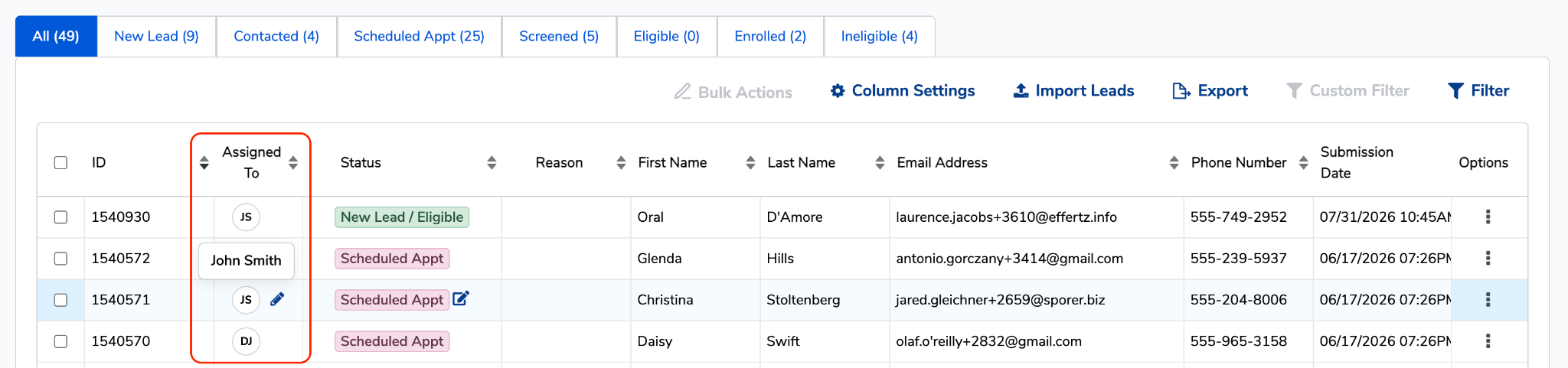
- Find the Assigned To column for that lead and click the edit pencil.
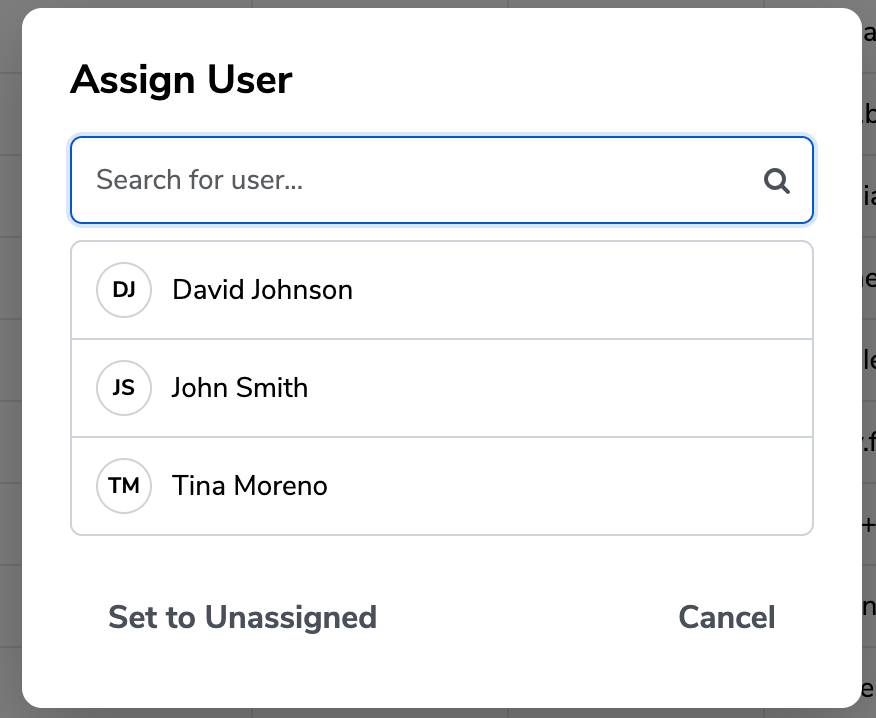
- Search for or select the staff member's name from the list.
- The column now displays that staff member's initials. Hover to confirm the full name.
How to assign multiple leads at once
If you're divvying up a batch of new leads, you don't have to edit them one at a time.
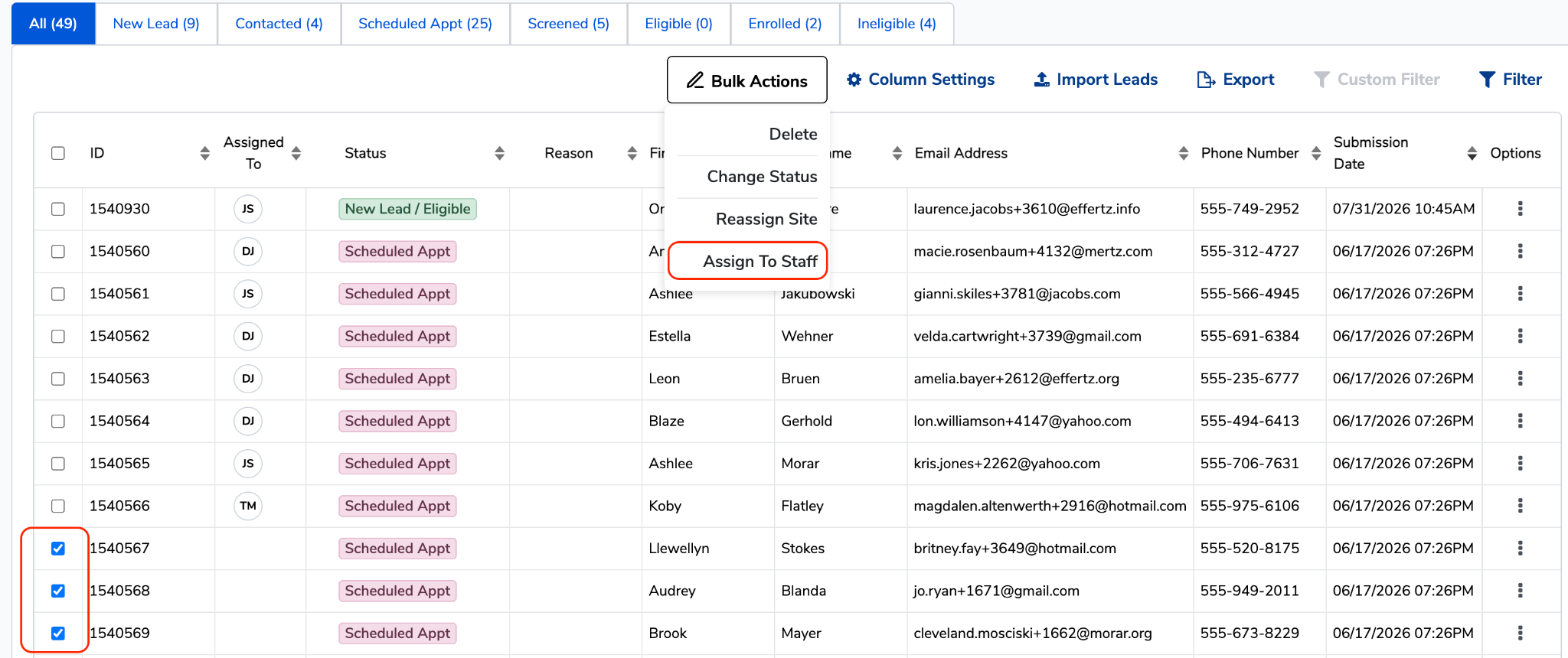
- Select your leads. On the Lead List Page, click the checkbox to the left of each lead you want to assign. To grab everything on the page at once, use the checkbox in the column header.
- Click Bulk Actions. This appears above the lead list once at least one lead is selected.
- Select Assign to Staff.
- Choose the staff member. Search for or select their name from the list.
- Every selected lead now shows that staff member's initials in the Assigned To column.
💡 Tip: Bulk assigning replaces any existing assignment on the selected leads. If some of the leads you selected are already assigned to someone else, they'll be reassigned to the new staff member.
How to filter by assigned staff member
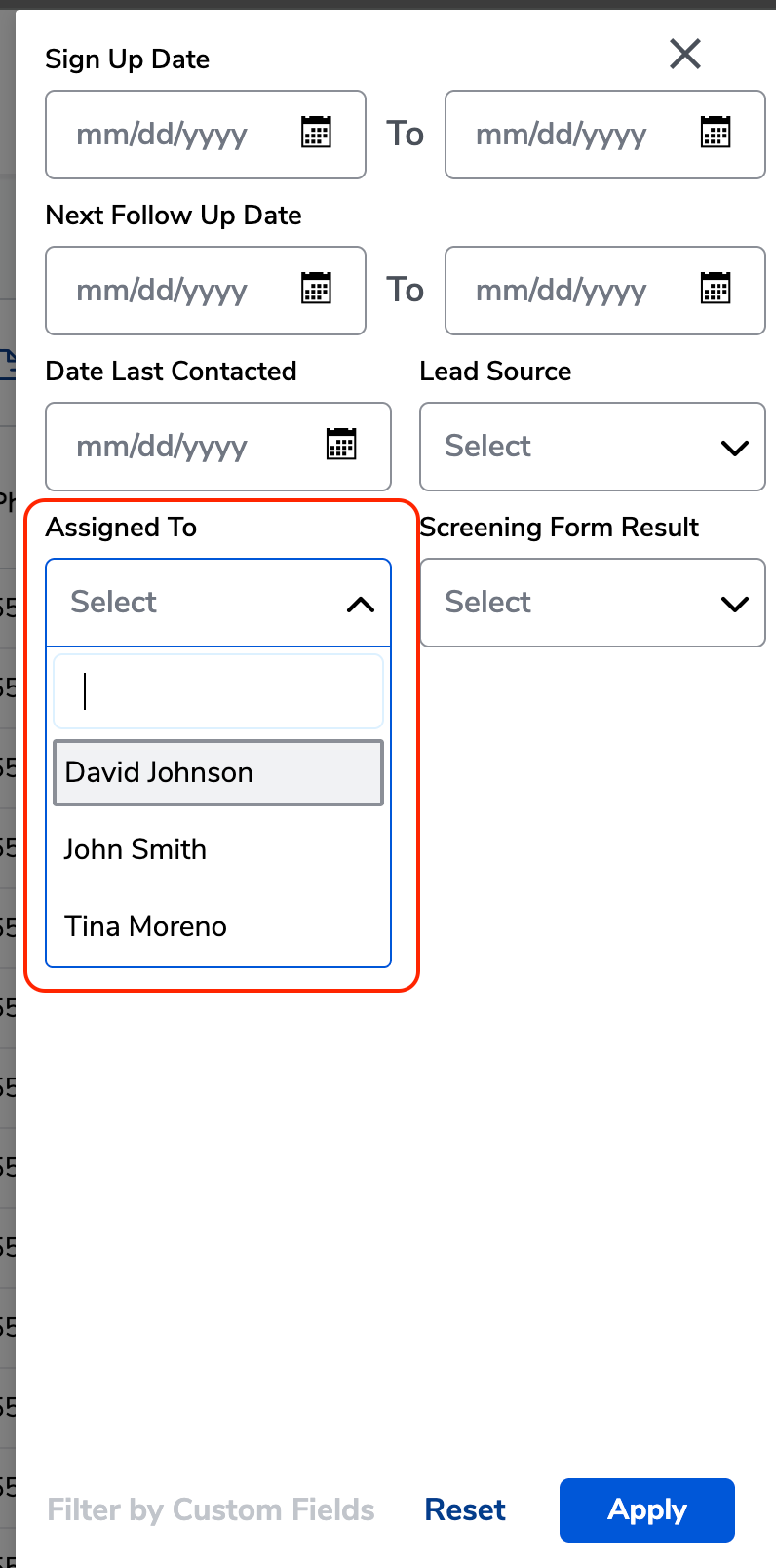
- Open Filters on the Lead List.
- Select Assigned To, then choose a staff member's name.
- The list updates to show only the leads assigned to that person — a quick way to pull up just your own leads.