Set a Next Follow Up Date for a Lead
Overview
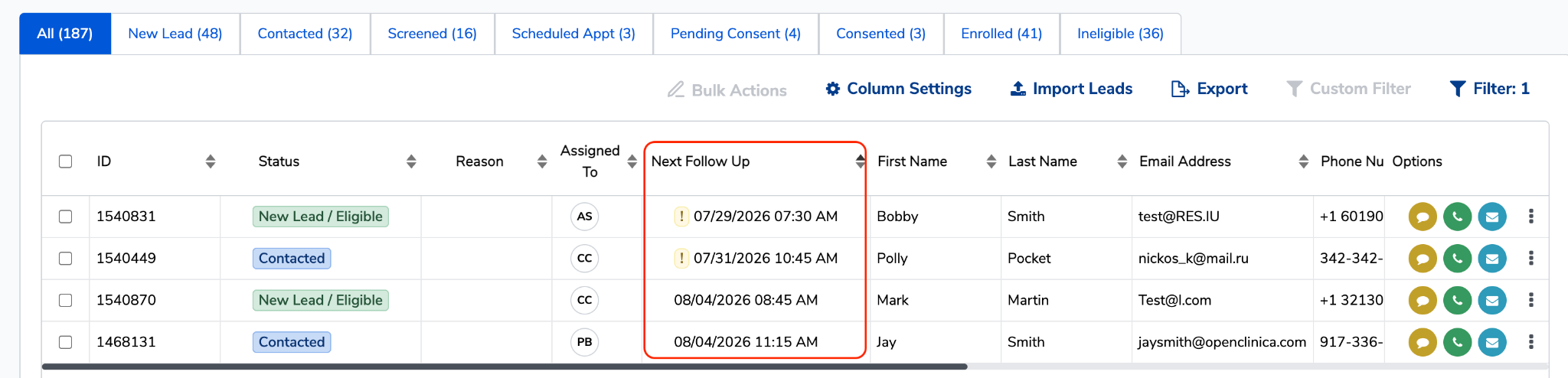
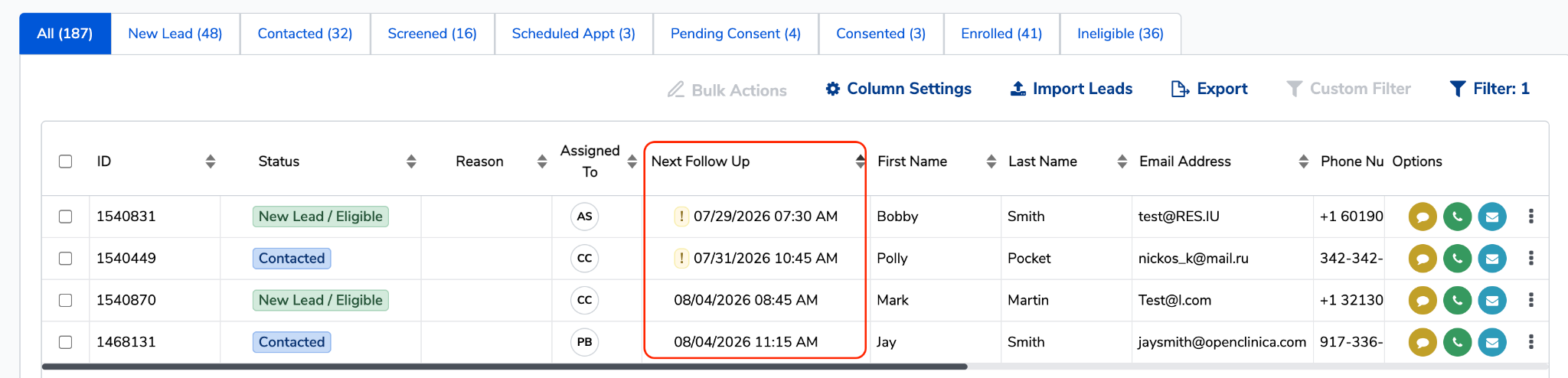
Next Follow Up is a column on the Lead List Page where you record the date and time you plan to reach back out to a lead. When someone says "call me back tomorrow at 1 PM," you put it here so it doesn't live in your head or on a sticky note.
It's just as useful for leads who aren't responding. Set a follow up for tomorrow, and the list will remind you to try again instead of letting them go quiet.
How to set a follow up date
- Go to the Lead List Page and find the lead you want to set a follow up date.
- Hover over that lead's row. A calendar icon appears in the Next Follow Up column.
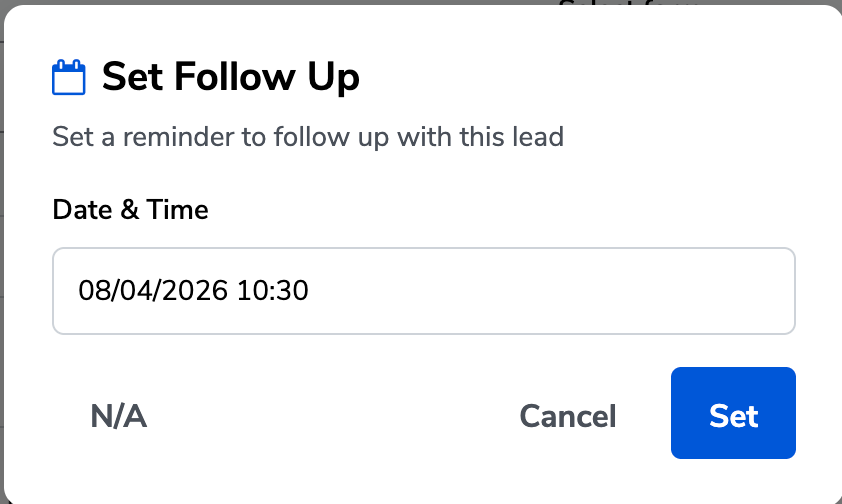
- Click the calendar icon. If the lead doesn't have a follow up date yet, the picker defaults to tomorrow — so if that's all you need, just save.
- To set a different date, choose the date, then set the time.
- Save. The column now shows the full date and time — for example, 08/04/2026 01:30 PM.
To remove a follow up date, open the picker on that lead and click N/A. The column goes back to empty, the lead drops out of your Next Follow Up filters, and any overdue warning disappears.
Setting a follow up while you're communicating with a lead
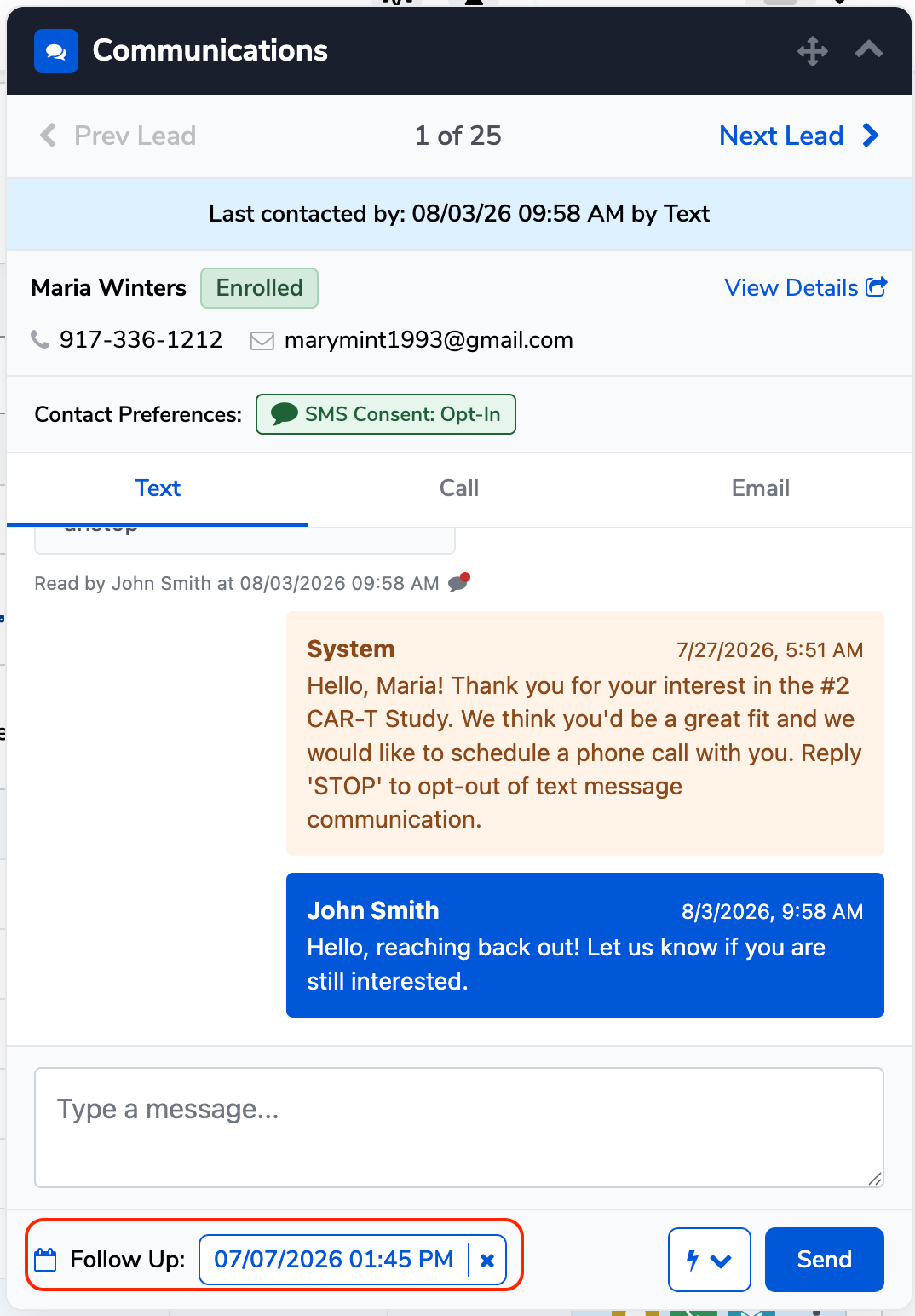
You'll also find a Follow Up field at the bottom of the Communications widget. It shows the lead's current follow up date and lets you change it without leaving the conversation — handy right after a text, call, or email, when you already know when to circle back. Click the × next to the date to clear it.
How overdue follow-ups appear
If a follow-up date has already passed, a yellow warning icon appears next to the date. That's your cue that the lead is waiting on you.
Sort the Next Follow Up column oldest-first to pull every overdue lead to the top of your list. This is the fastest way to catch anyone who slipped through.
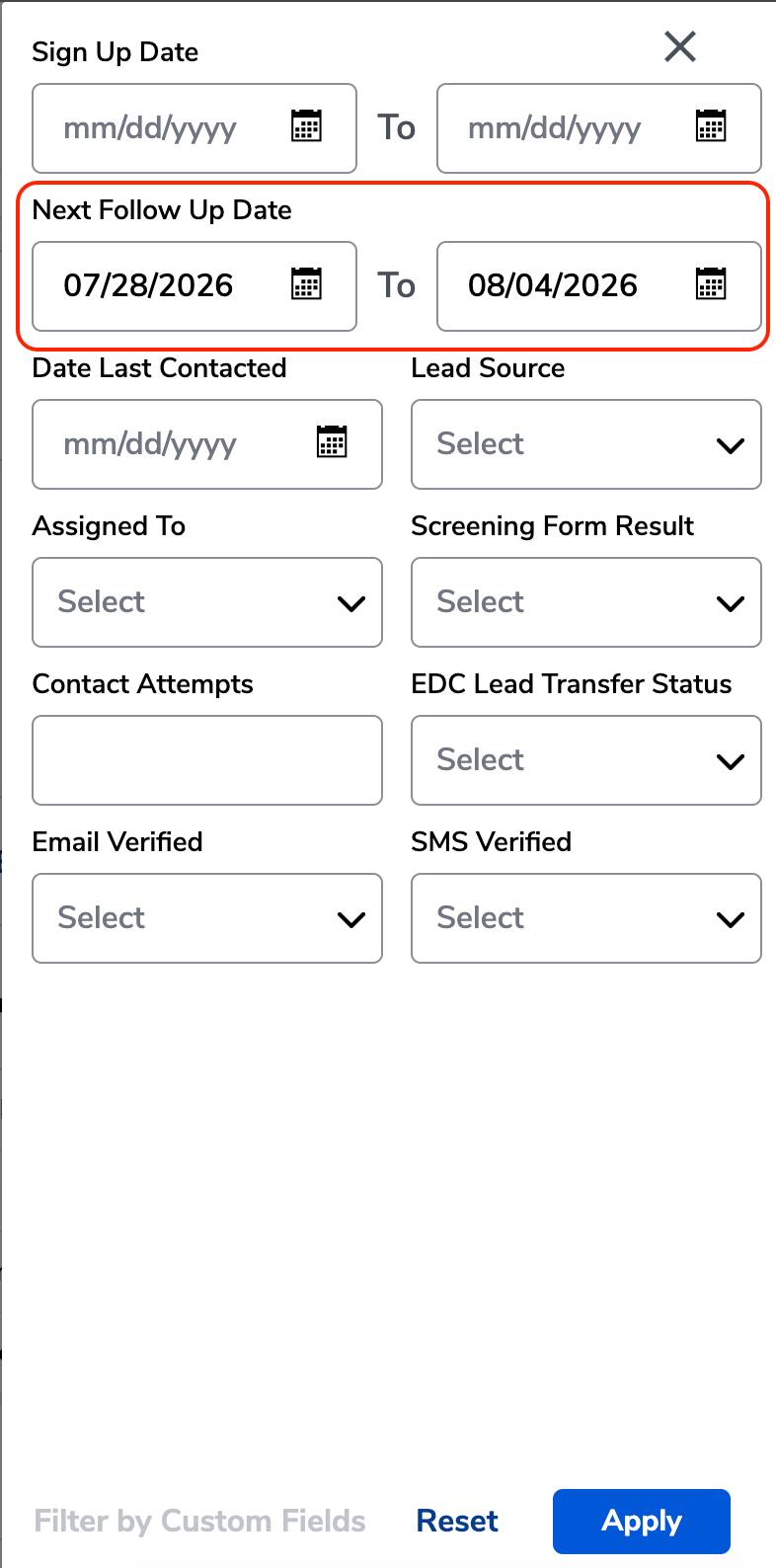
How to filter by follow-up date
- Open Filters on the Lead List.
- Select Next Follow Up and set a date range.
- The list updates to show only leads with a follow-up scheduled in that window — for example, today through the end of the week.