
Unread Text Message Notifications
Overview
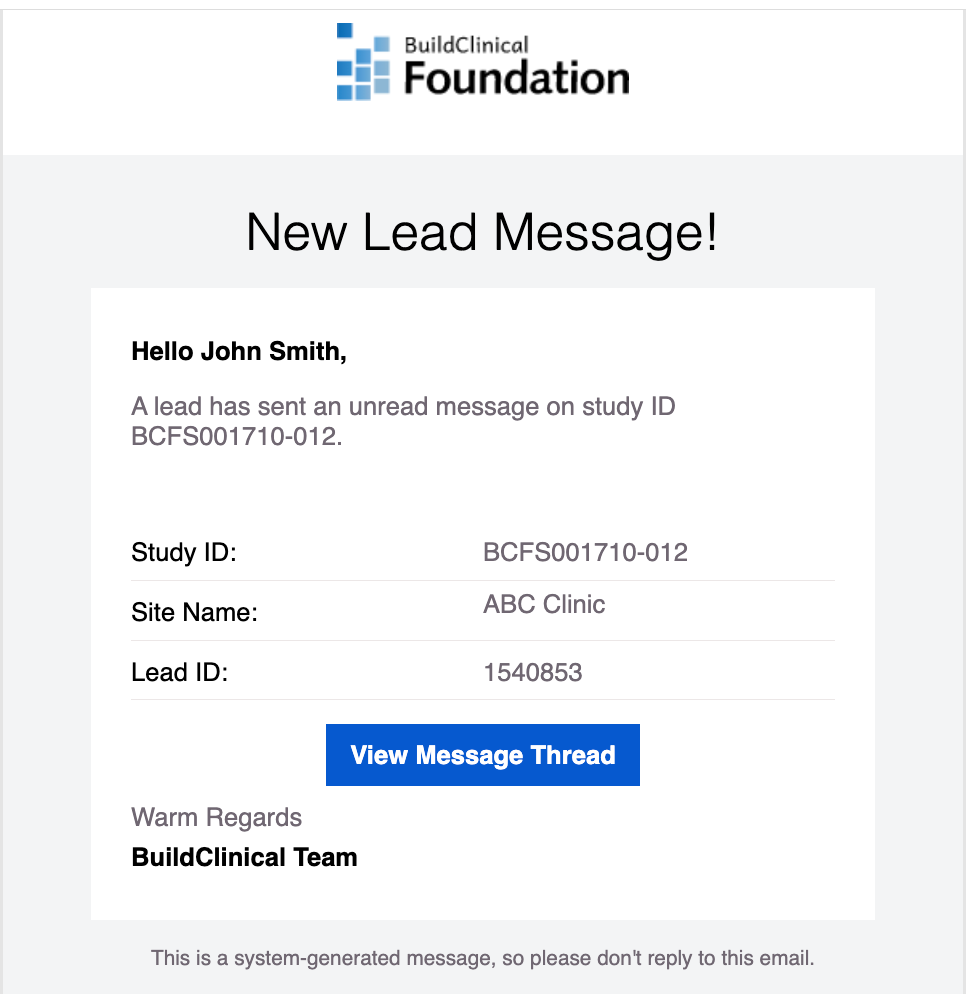
Leads respond best when your team replies fast. The Unread Text Messages preference emails you when an incoming text from a lead has gone unread for more than 5 minutes — so a message never sits waiting while you're in an in-person visit, logged out of Foundation, or heads-down on something else.
Understanding unread text message alerts
When a lead texts your study team, the message arrives in your Message Center. If no one on your team opens it within 5 minutes, Foundation emails you a heads-up. You can then log in and reply while the lead is still engaged.
This preference only appears on studies with engagement features enabled, since two-way texting is part of that feature set. On studies without them, the Unread Text Messages column shows a dash (—) instead of a toggle. See "How do I get engagement features enabled in my study?" to request access.
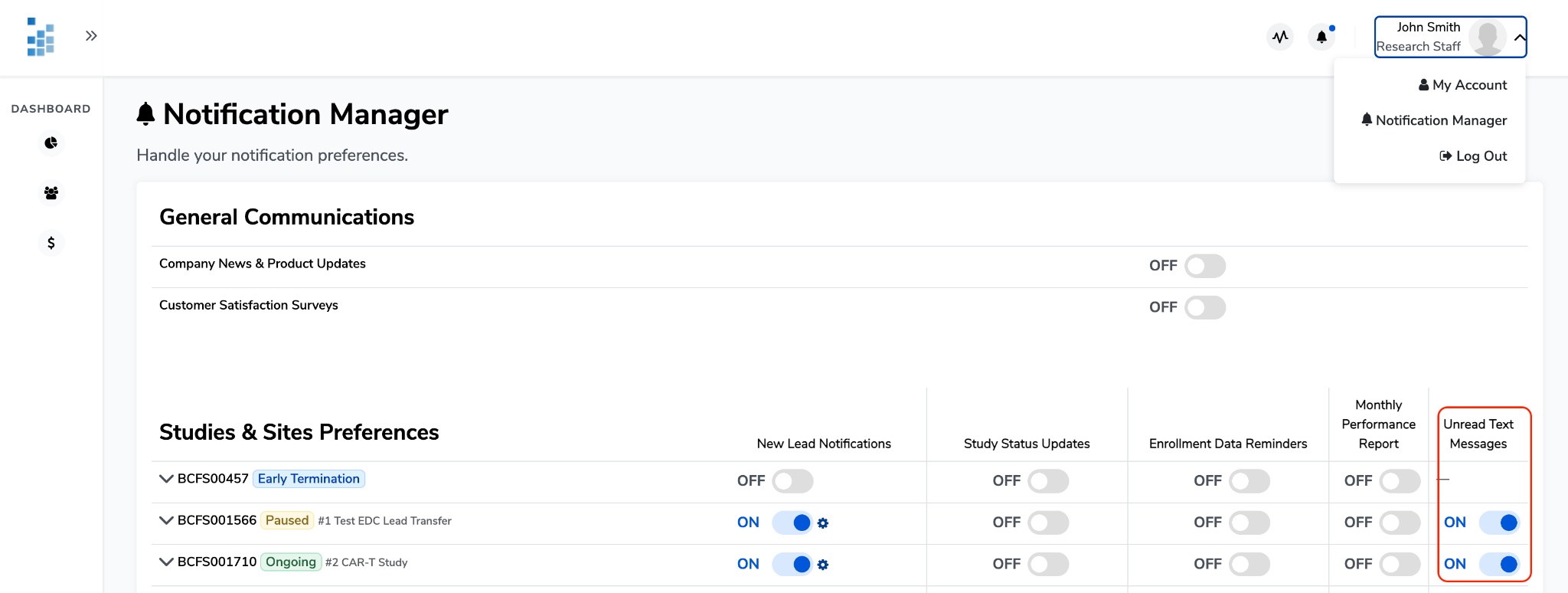
Tip: Keep this one ON even if you've turned other notifications off. Response time is the single biggest driver of text reply rates. Keep OFF if you are not a user who typically contacts leads.
How to turn on unread text message emails
- Click your name in the top-right corner of Foundation, then select Notification Manager.
- Scroll to Studies & Sites Preferences.
- Find your study row, then look to the Unread Text Messages column at the far right of the table.
- Click the toggle to ON.
- Expand a study using the chevron next to its study ID if you want to set this preference for individual sites rather than the whole study.
How to respond from the email
- Click View Message Thread in the email.
- Log in to Foundation and complete authentication if you aren't already signed in.
- You'll land on that lead's details page, where you can read the full conversation and reply.