
Foundation Study Settings - Text Templates
Overview
If your team sends the same handful of texts over and over — a welcome, a thank you, a nudge for a lead who's gone quiet — Text Templates let you save that wording once and drop it into a conversation in two clicks. Less typing, consistent messaging, faster replies.
Understanding text templates
Text templates are saved at the study level, so every user on the study can use them. You'll find them in Study Settings, on the Text Templates tab alongside Lead Status, Email Templates, and Automation Builder.
Each template has a short name and a message body. Templates you've already created are listed on the tab, with a pencil icon to edit and a trash icon to delete.
Text Templates are only available on studies with engagement features enabled, since two-way texting is part of that feature set. See "How do I get engagement features enabled in my study?" to request access.
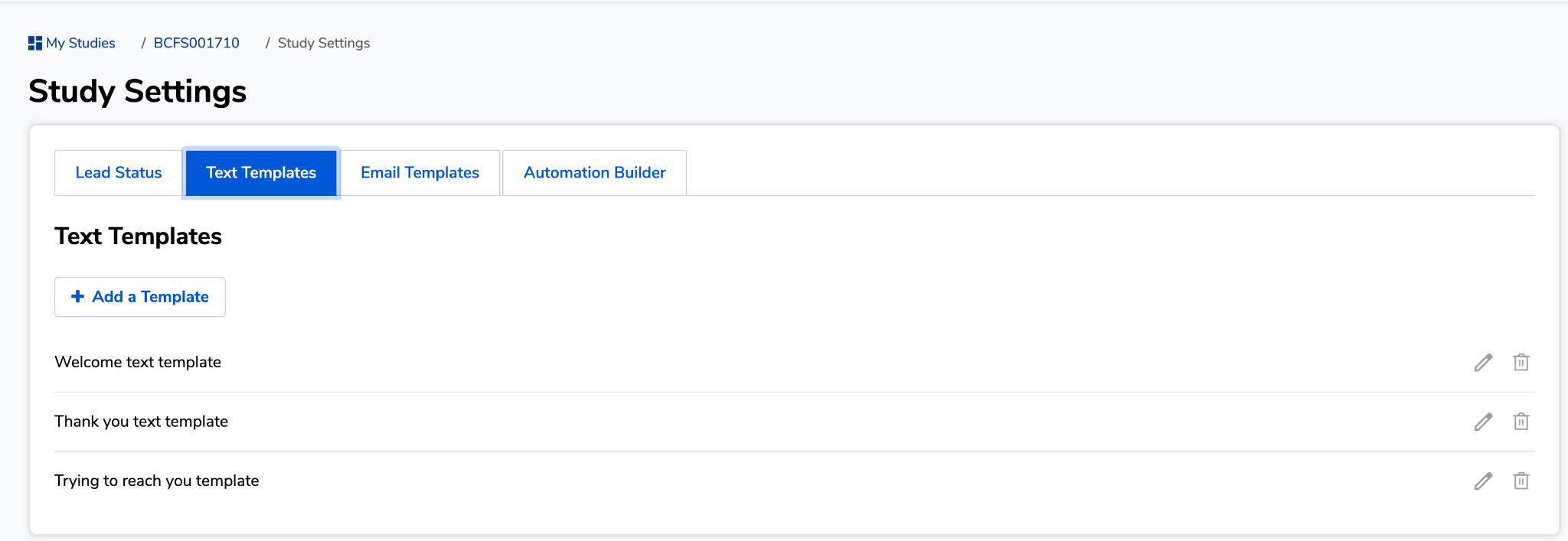
How to create a text template
- Go to My Studies, open your study, then click Study Settings.
- Click the Text Templates tab.
- Click + Add a Template.
- Give the template a short name. This is what your team sees when picking a template mid-conversation, so keep it descriptive — "Trying to reach you”.
- Type out the message body.
- Add {{first_name}} anywhere you want the lead's first name to appear. Foundation swaps in their real name when the message is sent.
- Save the template. It's now available to use in the Communication widget for texting.
Tip: Keep templates short and neutral enough to work for any lead. Anything you'd need to change every time is better typed by hand.
How to use a template when texting a lead
- Open the Communications panel for a lead and select the Text tab.
- Click the Quick Replies button — the lightning bolt to the left of Send.
- Search or scroll to find the template you want.
- Click the template. Foundation drops the text straight into the message box.
- Edit the message if you need to, then click Send.
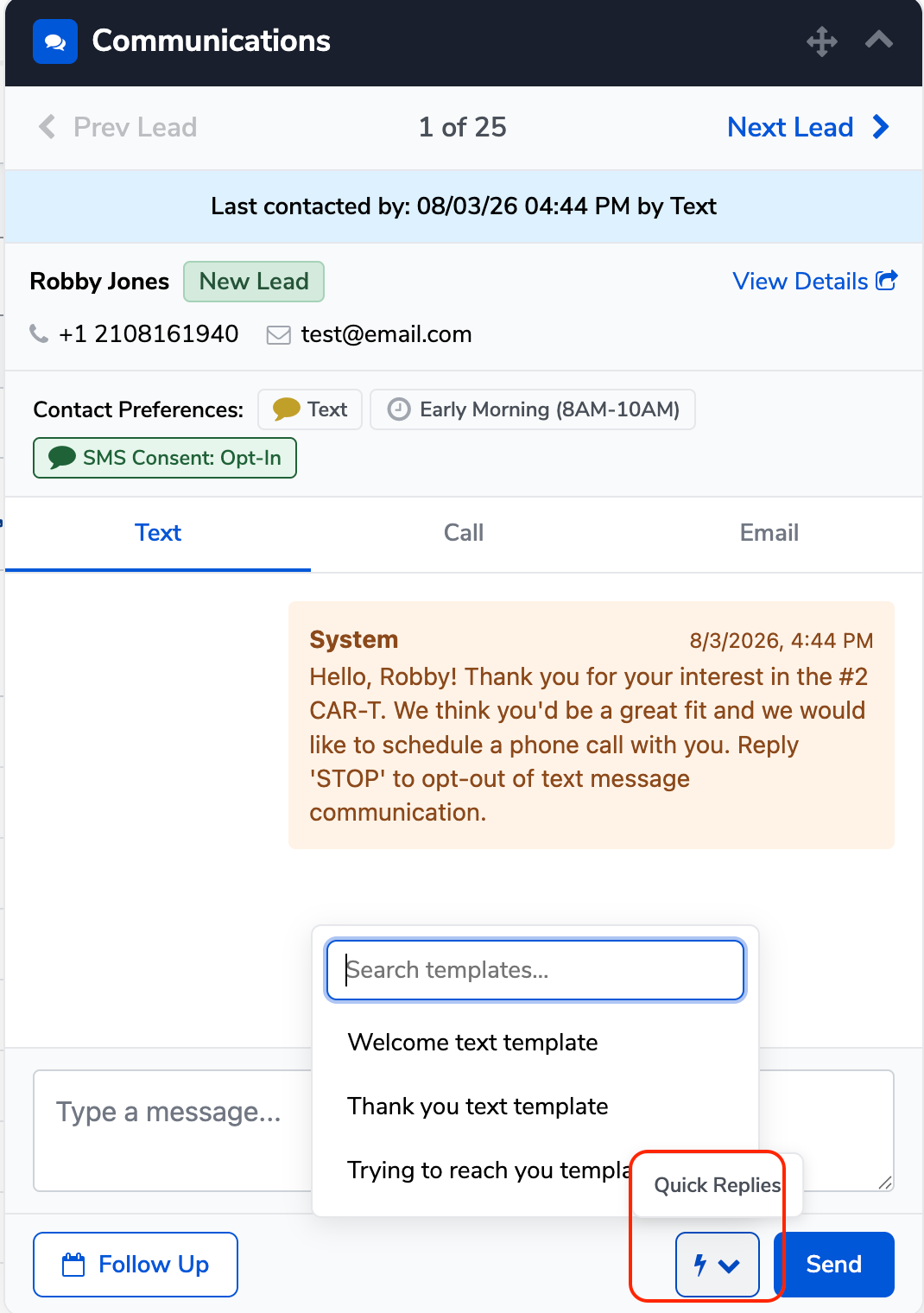
Note: Templates fill in the message box rather than sending on their own — so you always get a chance to read it over first.